Import from Course
Instructors can import material from an existing course into their current course. This allows you to quickly set up a new course by reusing exercises, lectures, exams, competencies, tutorial groups, and FAQs from a previous semester or another course.
Opening the Import Dialog
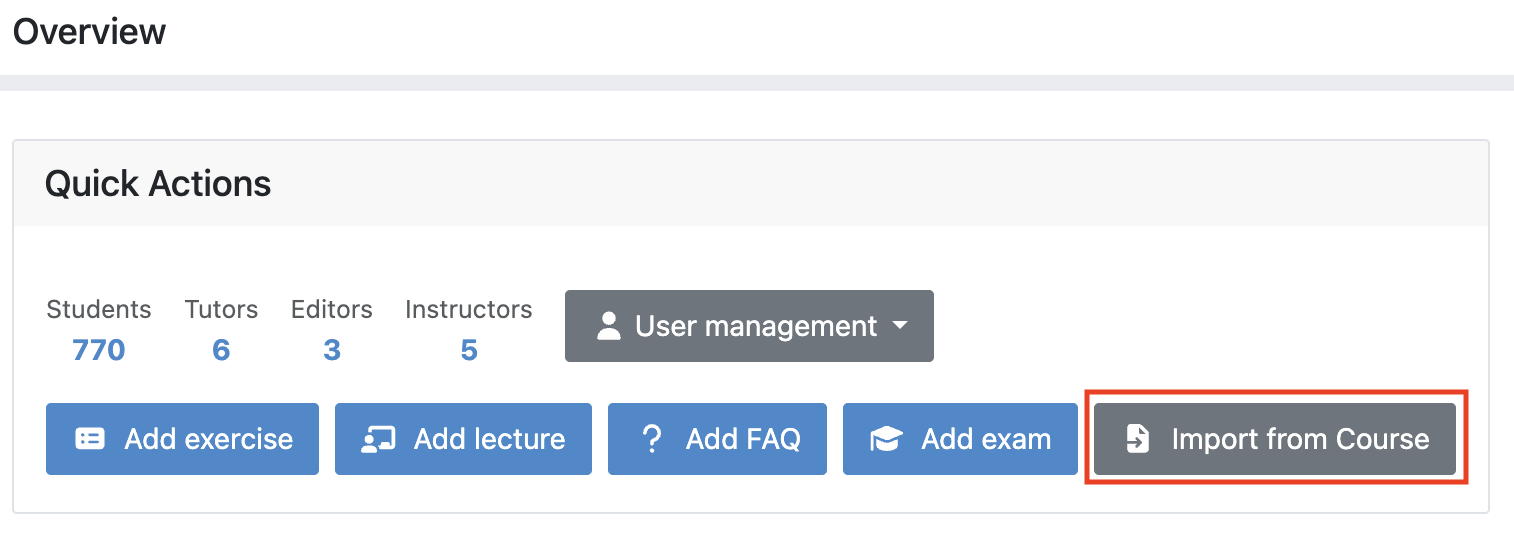
Navigate to the Course Detail page (Course Management → select your course). In the Quick Actions section, click the Import from Course button.
Select Source Course
After clicking the button, a dialog opens where you can search for and select the source course to import from.
- Use the search field to filter courses by title.
- The table displays the title, short name, and semester of each available course.
- The current course is automatically excluded from the list.
- Click Select next to the course you want to import from.

Select Import Options
After selecting a source course, the dialog shows what content is available for import. Each option displays the number of items available in the source course.
You can choose to import any combination of:
| Option | Description |
|---|---|
| Exercises | All exercises (programming, quiz, modeling, text, file upload) |
| Lectures | Lectures including their lecture units and attachments |
| Exams | Exams with their exercise groups |
| Competencies | Competency definitions and relations |
| Tutorial Groups | Tutorial group structures |
| FAQs | Frequently asked questions |
Options with no content in the source course are automatically disabled.
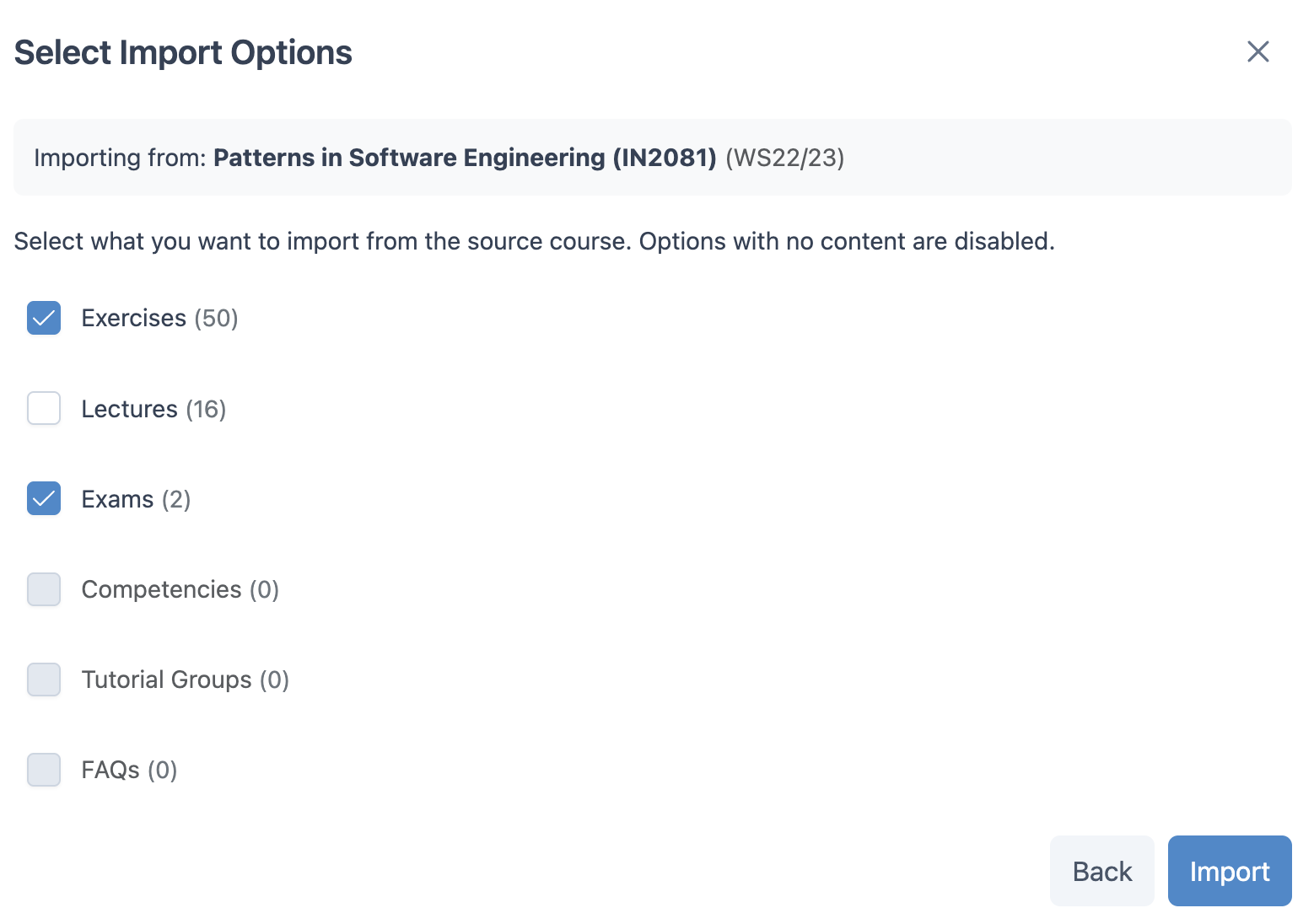
Click Import to start the import process, or Back to return to the course selection. A progress overlay will show the current status of the operation. After the import completes, the imported content is available in your course and can be edited as needed.