Programming Exercise
Overview
Conducting a programming exercise consists of the following main steps:
1: Instructor prepares exercise: Set up repositories containing the exercise code and test cases, configure build instructions, and set up the exercise in Artemis2-5: Students work on exercise: Students clone repositories, solve exercises, and submit solutions6: Automated testing: The continuous integration server verifies submissions by executing test cases and provides feedback7: Instructor reviews results: Review overall results of all students and react to common errors and problems

Exercise Templates
Artemis supports templates for various programming languages to simplify exercise setup. The availability of features depends on the continuous integration system (Local CI or Jenkins) and the programming language. Instructors can still use those templates to generate programming exercises and then adapt and customize the settings in the repositories and build plans.
Supported Programming Languages
The following table provides an overview of supported programming languages and their corresponding templates:
| No. | Programming Language | Local CI | Jenkins | Build System/Notes | Docker Image |
|---|---|---|---|---|---|
| 1 | Java | ✅ | ✅ | Gradle, Maven, DejaGnu | artemis-maven-docker |
| 2 | Python | ✅ | ✅ | pip | artemis-python-docker |
| 3 | C | ✅ | ✅ | Makefile, FACT, GCC | artemis-c-docker |
| 4 | Haskell | ✅ | ✅ | Stack | artemis-haskell |
| 5 | Kotlin | ✅ | ✅ | Maven | artemis-maven-docker |
| 6 | VHDL | ✅ | ❌ | Makefile | artemis-vhdl-docker |
| 7 | Assembler | ✅ | ❌ | Makefile | artemis-assembler-docker |
| 8 | Swift | ✅ | ✅ | SwiftPM | artemis-swift-swiftlint-docker |
| 9 | OCaml | ✅ | ❌ | Dune | artemis-ocaml-docker |
| 10 | Rust | ✅ | ✅ | cargo | artemis-rust-docker |
| 11 | JavaScript | ✅ | ✅ | npm | artemis-javascript-docker |
| 12 | R | ✅ | ✅ | built-in | artemis-r-docker |
| 13 | C++ | ✅ | ✅ | CMake | artemis-cpp-docker |
| 14 | TypeScript | ✅ | ✅ | npm | artemis-javascript-docker |
| 15 | C# | ✅ | ✅ | dotnet | artemis-csharp-docker |
| 16 | Go | ✅ | ✅ | built-in | artemis-go-docker |
| 17 | Bash | ✅ | ✅ | built-in | artemis-bash-docker |
| 18 | MATLAB | ✅ | ❌ | built-in | matlab |
| 19 | Ruby | ✅ | ✅ | Rake | artemis-ruby-docker |
| 20 | Dart | ✅ | ✅ | built-in | artemis-dart-docker |
Feature Support by Language
Feature Explanations
The features listed in the table above provide different capabilities for programming exercises.
Sequential Test Runs
Artemis can generate a build plan which first executes structural and then behavioral tests. This feature helps students better concentrate on the immediate challenge at hand by running tests in a specific order.
When enabled, structural tests (like checking class structure, method signatures) run first. Only if these pass will behavioral tests (testing actual functionality) execute. This prevents students from being overwhelmed by behavioral test failures when fundamental structural requirements aren't met yet.
Package Name
For some programming languages (primarily Java, Kotlin, Swift, and Go), you can specify a package name that will be used in the exercise template. This defines the package structure students must use in their code.
The package name is configured during exercise creation and helps maintain consistent code organization across student submissions.
Solution Repository Checkout
This feature allows instructors to compare a student submission against the sample solution in the solution repository. When available, instructors can view differences between student code and the reference solution side-by-side, making it easier to identify where students deviate from the expected approach.
Note: This feature is currently only supported for OCaml and Haskell exercises.
Auxiliary Repositories
Auxiliary repositories are additional repositories beyond the standard template, solution, and test repositories. They can be used to:
- Provide additional resources needed during testing
- Include libraries or dependencies
- Overwrite template source code in testing scenarios
Each auxiliary repository has a name, checkout directory, and description. They are created during exercise setup and added to the build plan automatically. For more details, see the Auxiliary Repositories configuration section in Exercise Creation.
Feature Support by Language Matrix
Not all templates support the same feature set. The table below provides an overview of supported features for each language:
L = Local CI, J = Jenkins
| No. | Language | Sequential Test Runs | Static Code Analysis | Plagiarism Check | Package Name | Project Type | Solution Repository Checkout | Auxiliary Repositories |
|---|---|---|---|---|---|---|---|---|
| 1 | Java | ✅ | ✅ | ✅ | ✅ | Gradle, Maven, DejaGnu | ❌ | L: ✅ J: ❌ |
| 2 | Python | L: ✅ J: ❌ | L: ✅ J: ❌ | ✅ | ❌ | n/a | ❌ | L: ✅ J: ❌ |
| 3 | C | ❌ | L: ✅ J: ❌ | ✅ | ❌ | FACT, GCC | ❌ | L: ✅ J: ❌ |
| 4 | Haskell | L: ✅ J: ❌ | ❌ | ❌ | ❌ | n/a | L: ✅ J: ❌ | L: ✅ J: ❌ |
| 5 | Kotlin | ✅ | ❌ | ✅ | ✅ | n/a | ❌ | L: ✅ J: ❌ |
| 6 | VHDL | ❌ | ❌ | ❌ | ❌ | n/a | ❌ | L: ✅ J: ❌ |
| 7 | Assembler | ❌ | ❌ | ❌ | ❌ | n/a | ❌ | L: ✅ J: ❌ |
| 8 | Swift | ❌ | ✅ | ✅ | ✅ | Plain | ❌ | L: ✅ J: ❌ |
| 9 | OCaml | ❌ | ❌ | ❌ | ❌ | n/a | ✅ | L: ✅ J: ❌ |
| 10 | Rust | ❌ | L: ✅ J: ❌ | ✅ | ❌ | n/a | ❌ | L: ✅ J: ❌ |
| 11 | JavaScript | ❌ | L: ✅ J: ❌ | ✅ | ❌ | n/a | ❌ | L: ✅ J: ❌ |
| 12 | R | ❌ | L: ✅ J: ❌ | ✅ | ❌ | n/a | ❌ | L: ✅ J: ❌ |
| 13 | C++ | ❌ | L: ✅ J: ❌ | ✅ | ❌ | n/a | ❌ | L: ✅ J: ❌ |
| 14 | TypeScript | ❌ | L: ✅ J: ❌ | ✅ | ❌ | n/a | ❌ | L: ✅ J: ❌ |
| 15 | C# | ❌ | ❌ | ✅ | ❌ | n/a | ❌ | L: ✅ J: ❌ |
| 16 | Go | ❌ | ❌ | ✅ | ✅ | n/a | ❌ | L: ✅ J: ❌ |
| 17 | Bash | ❌ | ❌ | ❌ | ❌ | n/a | ❌ | L: ✅ J: ❌ |
| 18 | MATLAB | ❌ | ❌ | ❌ | ❌ | n/a | ❌ | L: ✅ J: ❌ |
| 19 | Ruby | ❌ | L: ✅ J: ❌ | ❌ | ❌ | n/a | ❌ | L: ✅ J: ❌ |
| 20 | Dart | ❌ | L: ✅ J: ❌ | ❌ | ❌ | n/a | ❌ | L: ✅ J: ❌ |
Exercise Creation
Creating a programming exercise consists of the following steps:
- Generate programming exercise in Artemis
- Update exercise code in the template, solution, and test repositories
- Adapt build phases (optional)
- Configure static code analysis (optional)
- Adapt the interactive problem statement
- Configure grading settings
- Verify the exercise configuration
Generate Programming Exercise
Open  and navigate to Exercises of your preferred course.

Click on Generate new programming exercise.

Artemis provides various options to customize programming exercises:
Naming Section

- Title: The title of the exercise. Used to create a project on the VCS server. Can be changed after creation
- Short Name: Together with the course short name, this creates a unique identifier for the exercise across Artemis (including repositories and build plans). Cannot be changed after creation
- Preview: Shows the generated repository and build plan names based on the short names
Auxiliary Repositories

- Auxiliary Repositories: Additional repositories with a name, checkout directory, and description. Created and added to the build plan when the exercise is created. Cannot be changed after exercise creation
Categories

- Categories: Define up to two categories per exercise. Categories are visible to students and should be used consistently to group similar exercises
Participation Mode and Options

- Difficulty: Information about the difficulty level for students
- Participation Mode: Whether students work individually or in teams. Cannot be changed after creation. Learn more about team exercises
- Team Size: For team mode, provide recommended team size. Instructors/Tutors define actual teams after exercise creation
- Allow Offline IDE: Allow students to clone their repository and work with their preferred IDE
- Allow Online Editor: Allow students to use the Artemis Online Code Editor
- Publish Build Plan: Allow students to access and edit their build plan. Useful for exercises where students configure parts of the build plan themselves
Programming Language and Project Settings
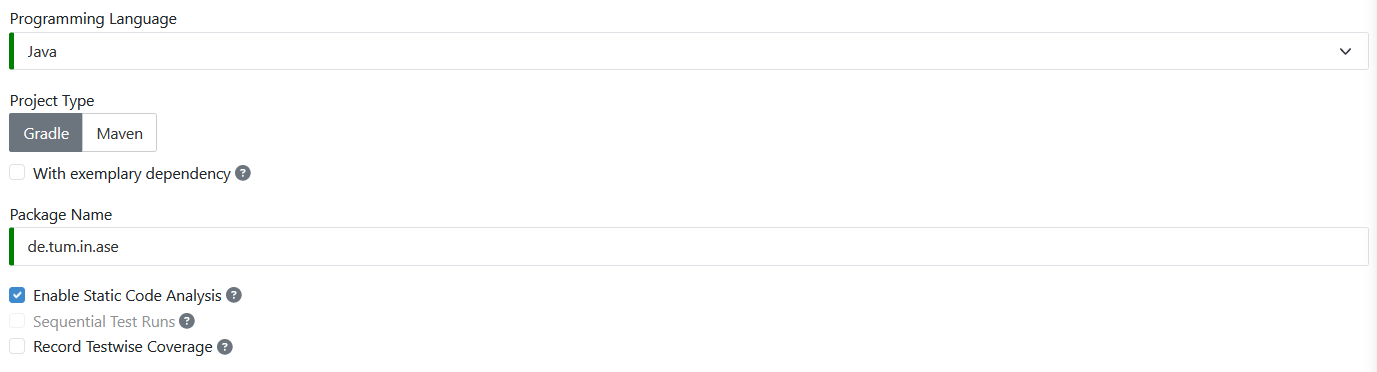
- Programming Language: The programming language for the exercise. Artemis chooses the template accordingly
- Project Type: Determines the project structure of the template. Not available for all languages
- With exemplary dependency: (Java only) Adds an external Apache commons-lang dependency as an example
- Package Name: The package name for this exercise. Not available for all languages
- Enable Static Code Analysis: Enable automated code quality checks. Cannot be changed after creation. See Static Code Analysis Configuration section below
- Sequential Test Runs: First run structural, then behavioral tests. Helps students focus on immediate challenges. Not compatible with static code analysis. Cannot be changed after creation
- Customize Build Configuration: Customize the build plan of your exercise. Available for all languages with Local CI and Jenkins. Can also be customized after creation
Version Control Settings

- Allow Custom Branches: Allow students to push to branches other than the default one
- Regular Expression for branch name: Custom branch names are matched against this Java regular expression. Pushing is only allowed if it matches
Score Configuration

-
Should this exercise be included in the course/exam score calculation?
- Yes: Define maximum Points and Bonus points. Total points count toward course/exam score
- Bonus: Achieved Points count as bonus toward course/exam score
- No: Achieved Points do not count toward course/exam score
-
Submission Policy: Configure initial submission policy. Choose between:
- None: Unlimited submissions
- Lock Repository: Limit submissions; lock repository when limit is reached
- Submission Penalty: Unlimited submissions with point deductions after limit
See Submission Policy Configuration section for details.
Timeline Configuration


- Release Date: When the exercise becomes visible to students
- Start Date: When students can start participating. If not set, students can participate immediately after release
- Automatic Tests: Every commit triggers test execution (except tests specified to run after due date)
- Due Date: Deadline for the exercise. Commits after this date are not graded
- Run Tests after Due Date: Build and test the latest in-time submission of each student on this date. Must be after due date. Use for executing hidden tests
- Assessment Type: Choose between Automatic Assessment or Manual Assessment. For manual assessment, tutors review submissions
- Assessment Due Date: Deadline for manual reviews. All assessments are released to students on this date
- Example Solution Publication Date: When the solution repository becomes available for students. If blank, never published
Assessment Options

- Complaint on Automatic Assessment: Allow students to complain about automatic assessment after due date. Only available if complaints are enabled in the course or for exam exercises
- Manual feedback requests: Enable manual feedback requests, allowing students to request feedback before the deadline. Each student can make one request at a time
- Show Test Names to Students: Show names of automated test cases to students. If disabled, students cannot differentiate between automatic and manual feedback
- Include tests into example solution: Include test cases in the example solution so students can run tests locally
Static Code Analysis Configuration

- Max Static Code Analysis Penalty: Available if static code analysis is active. Maximum points that can be deducted for code quality issues as a percentage (0-100%) of Points. Defaults to 100% if empty
Problem Statement and Instructions
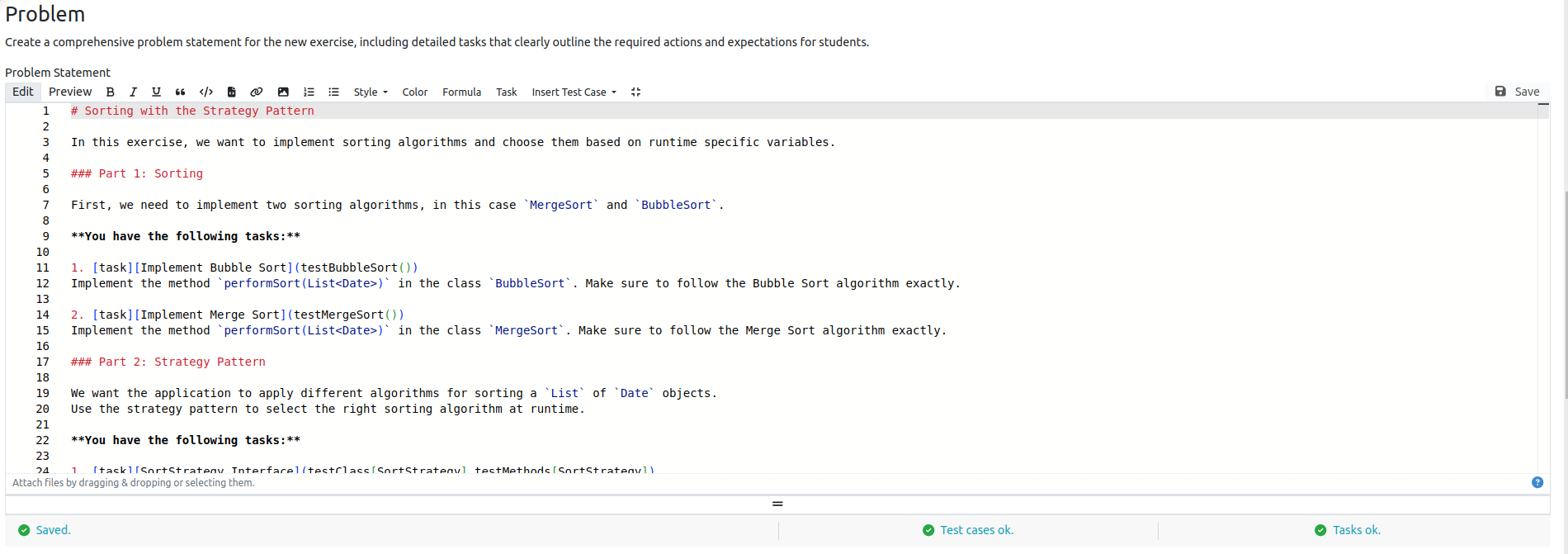
- Problem Statement: The exercise description shown to students. See Adapt Interactive Problem Statement section

- Grading Instructions: Available for Manual Assessment. Create instructions for tutors during manual assessment
Click  to create the exercise.
Result: Programming Exercise Created

Artemis creates the following repositories:
- Template: Template code that all students receive at the start. Can be empty
- Test: Contains all test cases (e.g., JUnit-based) and optionally static code analysis configuration. Hidden from students
- Solution: Solution code, typically hidden from students, can be made available after the exercise
Artemis creates two build plans:
- Template (BASE): Basic configuration for template + test repository. Used to create student build plans
- Solution (SOLUTION): Configuration for solution + test repository. Used to verify exercise configuration
Update Exercise Code in Repositories
You have two alternatives to update the exercise code:
Alternative 1: Clone and Edit Locally
- Clone the 3 repositories and adapt the code on your local computer in your preferred IDE
- To execute tests locally:
- Copy template (or solution) code into an assignment folder (location depends on language)
- Execute tests (e.g., using
mvn clean testfor Java)
- Commit and push your changes via Git
Special Notes for Haskell
The build file expects the solution repository in the solution subdirectory and allows a template subdirectory for easy local testing.
Convenient checkout script:
#!/bin/sh
# Arguments:
# $1: exercise short name
# $2: (optional) output folder name

if [ -z "$1" ]; then
  echo "No exercise short name supplied."
  exit 1
fi

EXERCISE="$1"
NAME="${2:-$1}"

# Adapt BASE to your repository URL
BASE="ssh://git@artemis.tum.de:7999/$EXERCISE/$EXERCISE"

git clone "$BASE-tests.git" "$NAME" && \
  git clone "$BASE-exercise.git" "$NAME/template" && \
  git clone "$BASE-solution.git" "$NAME/solution" && \
  cp -R "$NAME/template" "$NAME/assignment" && \
  rm -r "$NAME/assignment/.git/"
Special Notes for OCaml
Tests expect to be in a tests folder next to assignment and solution folders.
Convenient checkout script:
#!/bin/sh
# Arguments:
# $1: exercise short name
# $2: (optional) output folder name

PREFIX=  # Set your course prefix

if [ -z "$1" ]; then
  echo "No exercise short name supplied."
  exit 1
fi

EXERCISE="$PREFIX$1"
NAME="${2:-$1}"

BASE="ssh://git@artemis.tum.de:7999/$EXERCISE/$EXERCISE"

git clone "$BASE-tests.git" "$NAME/tests"
git clone "$BASE-exercise.git" "$NAME/template"
git clone "$BASE-solution.git" "$NAME/solution"

# Hardlink assignment interfaces
rm "$NAME/template/src/assignment.mli"
rm "$NAME/tests/assignment/assignment.mli"
rm "$NAME/tests/solution/solution.mli"
ln "$NAME/solution/src/assignment.mli" "$NAME/template/src/assignment.mli"
ln "$NAME/solution/src/assignment.mli" "$NAME/tests/assignment/assignment.mli"
ln "$NAME/solution/src/assignment.mli" "$NAME/tests/solution/solution.mli"
Test script:
#!/bin/sh
dir="$(realpath ./)"

cd .. || exit 1
rm ./assignment
ln -s "$dir" ./assignment
cd tests || exit 1
./run.sh
Alternative 2: Edit in Browser
Open  in Artemis and adapt the code in the online editor.

You can switch between different repositories and  the code when done.
Collaborative Editing
Artemis supports real-time collaborative editing for programming exercises. Multiple instructors and editors can work on the same exercise simultaneously, with no additional setup required. Collaboration spans two views:
- Online Code Editor () — live synchronization of code files, the file tree, and the problem statement.
- Edit Page (
 ) — synchronization of exercise settings and the problem statement.
To start collaborating, have a second instructor or editor open the same exercise. Both users are connected automatically.
Live Code Editing: When two or more users open the same file in the same repository, their edits are synchronized automatically. This is supported across all repository types: Template, Solution, Tests, and Auxiliary. Each collaborator's cursor and text selection are visible with a colored marker and name label.
When someone pushes a commit to a repository (e.g., via Git CLI, an IDE, or "Submit" button) while the online code editor is open, a new commit alert is displayed. This advises you to save your work by clicking and refresh the page to incorporate the new changes. The alert only appears for the repository that received the new commit.


File Tree Synchronization: File creation, deletion, and renaming are broadcast to all connected editors immediately. If another user had a deleted or renamed file open, it is handled gracefully.
Problem Statement Synchronization: The markdown problem statement editor supports the same real-time collaboration with cursor awareness. This works both in the online code editor () and on the edit page ().

Exercise Settings Synchronization: On the edit page (), changes to exercise settings (title, points, dates, grading criteria, etc.) are synchronized to other users when saved. Non-conflicting changes are applied automatically. If both instructors modified the same fields, a merge conflict modal lets you choose which values to keep.

AI-Assisted Problem Statement Authoring
Artemis integrates AI-assisted authoring capabilities into the programming exercise editor through the Hyperion module. These features help instructors generate, refine, and analyze problem statements without leaving the editor. The AI assists the process while the instructor retains full control — every AI-generated modification must be reviewed and accepted through a diff view before it is applied.
The AI-assisted authoring features are organized into two areas:
- Problem Statement Generation and Refinement — create and iteratively improve problem statements
- Instructor Checklist — analyze quality, infer learning goals, and assess difficulty
Generate Problem Statement
When creating a new exercise, the Problem step provides a requirements input field. Enter a textual prompt describing the desired exercise (up to 1,000 characters) and click Generate Draft Problem Statement. The system generates a Markdown draft that includes task annotations for linking tasks to test cases and inserts it directly into the editor.

Refine Problem Statement
Once a problem statement exists in the editor, the same input field accepts a refinement instruction. Click Refine Problem Statement to revise the entire document based on the instruction. The system produces a revised version and presents the changes in a diff view.

Targeted Refinement
To modify a specific portion of the problem statement, select a text region in the Markdown editor. A Refine Selection button appears next to the selection. Click it to open an inline instruction field (up to 500 characters), then enter a description of the desired change. The system produces a localized revision affecting only the selected region.


Diff View
All AI-generated modifications — from generation, refinement, quality fixes, and difficulty adaptation — are presented in a diff view before application. The left column shows the current problem statement with deletions highlighted in red, while the right column shows the proposed revision with additions highlighted in green. A summary bar reports the net change statistics. You can accept, discard, or toggle between split and inline views.

Instructor Checklist
The instructor checklist analyzes the problem statement across three dimensions concurrently:
- Quality Assessment — detects issues in clarity, coherence, and completeness
- Learning Goal Estimation — infers learning goals from the problem statement
- Difficulty Assessment — evaluates exercise complexity relative to the declared level
Click Analyze Problem Statement in the checklist panel to run all three analyses. Results appear in collapsible sections. After modifying the problem statement, sections are marked as stale and can be re-analyzed individually.
Quality Assessment: Displays a radar chart with percentage scores for clarity, coherence, and completeness. Detected issues appear with category badges, severity levels, descriptions, suggested fixes, and impact assessments. Use Fix to apply an AI-generated correction for a single issue, or Fix All Issues for batch correction. Both actions present proposed changes in the diff view.

Difficulty Assessment: Shows the suggested difficulty level alongside the declared level. When a mismatch exists, an arrow indicator and descriptive text alert you. Task and test counts summarize the exercise structure, and a detailed explanation describes the reasoning. Click an Adapt to button (Easy, Medium, or Hard) to generate a revised problem statement adjusted to the target difficulty, presented in the diff view.

Learning Goal Estimation: Presents estimated learning goals, each tagged with a knowledge area badge (e.g., AL for Algorithms, SE for Software Engineering), a taxonomy level (e.g., APPLY, ANALYZE), and a "Linked" indicator when the goal matches an existing course competency. Each entry includes textual evidence from the problem statement. Select individual goals or use Select All, then click Apply All to link them to the course's competencies. The system checks whether suitable competencies already exist, links matching ones directly, and creates new competencies only where no match is found.


AI-Assisted Code Generation
Artemis can use Hyperion to generate templates, solutions, and tests for Java programming exercises. Code generation is currently only available for Java. The generated files are written to the exercise repositories, committed, and built through the configured CI setup. Treat the generated result as a draft: review the changed files, inspect the build result, and adapt the exercise before releasing it to students.
There are two ways to start code generation:
During exercise creation: For new Java programming exercises, click Generate with AI instead of the regular generate action. Artemis creates the exercise with prepared repositories, opens the online editor, and starts code generation for the template, solution, and test repositories.

From the online editor: Open the exercise with and use Artemis Intelligence → Generate Code. The settings button next to the action lets you choose which repositories to generate. Code generation supports the Template, Solution, and Test repositories; assignment and auxiliary repositories are not supported.

Before starting, make sure the problem statement describes the expected behavior clearly and that the programming language and build configuration are already selected. Hyperion uses the problem statement, the current repository structure, build environment context, and known consistency issues as generation context.
Human Feedback Support
Instructors and editors can mark active repository review threads with Apply with AI before starting generation. Selected review threads give Hyperion targeted human feedback for the next generation run.

After selecting a thread, the thread header shows that it is selected for code generation and the action changes to Remove Selection.


Selected feedback is shown in the code generation settings, grouped by repository. When code generation starts, Artemis sends the selected active thread IDs for the currently generated repository to Hyperion. Hyperion then uses the selected thread comments as targeted human feedback for the template, solution, or test generation prompts.

Only valid feedback is forwarded: resolved and outdated threads are excluded, thread IDs are validated, and feedback is filtered to the current exercise and repository. Feedback that is irrelevant, conflicts with the exercise context, or would introduce inconsistencies should be ignored during generation. The selected feedback flow is intended for targeted follow-up generation after instructors have reviewed existing generated or manually written code.
After confirmation, Artemis starts an asynchronous generation job. While the job is running:
- Selected repositories are processed one after another
- The status popover shows queued, running, completed, warning, failed, and skipped states
- File activity lists newly created or updated files
- The currently open repository is refreshed as generated files are committed
- Build feedback can be used for an additional improvement attempt

Generation can finish with a warning even when files were committed, for example if the build failed, timed out, or the CI build could not be triggered. In that case, inspect the status details, open the generated repository, and check the latest build result before continuing manually.

Review Comments
During exercise creation, instructors and editors can use review comments to discuss specific lines directly in the online editor. Review comments are meant for coordinating exercise authors before releasing or updating an exercise. They are not student feedback and are only visible to users who can edit the exercise.
To add a review comment, open the exercise with , hover next to the relevant line, and use the comment action. If Artemis asks you to submit first, click so the comment can be attached to the current saved version of the file or problem statement.


Review comments can be attached to:
- Problem statement lines
- Template repository files
- Solution repository files
- Test repository files
- Auxiliary repository files
Each review comment starts a thread at the selected location. Other instructors and editors working on the same exercise see new comments, replies, edits, deletions, and resolved states in real time. Files with unresolved review comments are marked in the file tree. Reply to a thread to continue the discussion, and resolve it when the issue has been addressed. Resolved threads remain available, but they are collapsed so open discussions stay visible.

Consistency Check Comments: Hyperion's consistency check can create review comments for potential mismatches between the problem statement and the exercise repositories. These AI-created threads are labelled as consistency issues and show their severity and category. If one issue affects multiple artifacts, the related locations are grouped, and you can jump between them from the review comment. The issue navigator in the editor toolbar lets you move through the current consistency findings.

Some consistency check comments may include a suggested inline fix. This suggested change is intended for simple, local corrections, such as aligning a name, signature, or small code fragment. Review the suggested change before applying it. For complex or ambiguous issues, Artemis may leave the suggested fix empty and only keep the explanatory review comment.
Testing Frameworks by Language
Write test cases in the Test repository using language-specific frameworks:
| No. | Language | Package Manager | Build System | Testing Framework |
|---|---|---|---|---|
| 1 | Java | Maven / Gradle | Maven / Gradle | JUnit 5 with Ares |
| 2 | Python | pip | pip | pytest |
| 3 | C | - | Makefile | Python scripts / FACT |
| 4 | Haskell | Stack | Stack | Tasty |
| 5 | Kotlin | Maven | Maven | JUnit 5 with Ares |
| 6 | VHDL | - | Makefile | Python scripts |
| 7 | Assembler | - | Makefile | Python scripts |
| 8 | Swift | SwiftPM | SwiftPM | XCTest |
| 9 | OCaml | opam | Dune | OUnit2 |
| 10 | Rust | cargo | cargo | cargo test |
| 11 | JavaScript | npm | npm | Jest |
| 12 | R | built-in | - | testthat |
| 13 | C++ | - | CMake | Catch2 |
| 14 | TypeScript | npm | npm | Jest |
| 15 | C# | NuGet | dotnet | NUnit |
| 16 | Go | built-in | built-in | go testing |
| 17 | Bash | - | - | Bats |
| 18 | MATLAB | mpminstall | - | matlab.unittest |
| 19 | Ruby | Gem | Rake | minitest |
| 20 | Dart | pub | built-in | package.test |
Check the build plan results:
- Template and solution build plans should not have Build Failed status
- If the build fails, check build errors in the build plan
Prevent Maven Central Rate Limits (Java and Kotlin)
Affected builds fail with errors such as:
Could not GET 'https://repo.maven.apache.org/maven2/de/tum/in/ase/artemis-java-test-sandbox/1.11.3/artemis-java-test-sandbox-1.11.3.pom'.
Received status code 429 from server: Too Many Requests
Only Java and Kotlin exercises are affected, because their builds resolve dependencies via Maven Central. There is currently no central Artemis-side solution, so instructors must configure the mirror in each exercise's test repository.
When Artemis detects a build that failed due to Maven Central rate limiting, it automatically notifies the instructors of the affected course by email (at most once per day per exercise), including a link to this section and to the online editor of the affected exercise.
For Artemis instances operated by TUM, the Artemis team provides a Reposilite mirror at https://reposilite.aet.cit.tum.de that proxies and caches all required artifacts. Other institutions can operate their own mirror and configure it in the same way.
Recommended: Add the Mirror to the Test Repository
Gradle exercises: In the build.gradle file of the test repository, add the mirror as the first entry in the repositories block:
repositories {
    maven {
        name "reposiliteRepositoryReleases"
        url "https://reposilite.aet.cit.tum.de/releases"
    }
    mavenCentral()
}
Maven exercises: In the pom.xml file of the test repository, add the mirror as the first entry in the <repositories> section (create the section if it does not exist yet):
<repositories>
    <repository>
        <id>reposilite-repository-releases</id>
        <name>Reposilite Repository</name>
        <url>https://reposilite.aet.cit.tum.de/releases</url>
    </repository>
</repositories>
Alternative: Configure the Mirror in the Docker Image
Alternatively, the mirror can be baked into the Docker image used for the build (e.g., via a Gradle init script or a Maven settings.xml inside the image). We mention this option for completeness, but recommend the test repository configuration above because it is much more flexible:
- While the mirror has been stable so far, its availability cannot be guaranteed. If it ever becomes unavailable, changing a single entry in the test repository (e.g., via the online code editor) takes seconds and immediately applies to all subsequent builds.
- Switching or rebuilding a Docker image is much slower and must be repeated for every exercise that uses the image.
Adapt Build Phases (Optional)
Only available with Integrated Code Lifecycle
Instructors can configure the build phases. To do this, check the Customize Build Configuration option in the exercise creation, edit, or import screen. All changes apply to all builds (template, solution, and student submissions). You can view the configured build plan on the exercise's detail or edit page.

The build plan consists of multiple phases. Each phase can be customized in the following ways:
- Name: The name of the phase.
- Inclusion condition: The condition can be either
AlwaysorAfter due date. If a phase is configured to run after the due date, Artemis automatically schedules the latest submission for each student participation to be rebuilt 15 minutes (adjustable) after the due date (or after the exam's due date, including grace period and student time extensions). - Script: The script specifying the commands to run for the phase.
- Tests expected: A toggle indicating whether tests are expected for a phase. If disabled for all phases, the exercise will not collect any test results, but the build status will still be accurately determined by the build's exit code.
- Result paths: The paths where the test results for this phase are located.
- Execute at end regardless of previous failures: A toggle indicating whether the phase should run at the end of the build, even if a previous phase failed.
Instructors can freely define how many phases are executed and in which order.
Determining Build Success:
Before a build runs, any phases where the inclusion condition is not met are dropped. Artemis then determines build success based on the remaining phases:
- If phases expecting tests (excluding static code analysis) remain: Build success is determined by whether the expected tests were successfully found and executed.
- If no phases expecting tests (excluding static code analysis) remain: Build success is determined by the exit code of the build.
Common Test Setup Scenarios:
Controlling when tests run (via build-phase inclusion conditions) is separate from controlling when results are visible to students (via test-case visibility in the grading page). To achieve the desired outcome, both must be configured accordingly:
- Immediate Full Feedback: Set all build phases to
Alwaysand configure the corresponding test cases to always be visible. Tests execute on every commit, and all results are shown immediately after submission. - Build Status Only: Remove all phases that expect tests. Students only see if their code compiled successfully based on the build's exit status. Test-case visibility is irrelevant since no tests are executed.
- Tests After Due Date: Keep the compilation phase as
Alwaysand set any phases expecting tests toAfter due date. Since the tests do not execute before the deadline, test-case visibility technically does not matter, but can be set toAfter Due Datefor consistency. The tests will only execute after the deadline passes, and their output will become available at that point. - Partial Immediate Feedback: Set specific test phases (e.g., static code analysis) to
Always, and other test phases toAfter due date. For tests running immediately, set their visibility toAlways. For tests running after the due date, visibility technically does not matter, but can be set toAfter Due Datefor consistency. Students receive immediate feedback on some aspects and delayed feedback on others.
Default behavior:
- Creating a course programming exercise: Phases are set to always run. Test results are set to always be visible.
- Creating a programming exercise in exam mode: Phases that expect tests are automatically set to run after the due date. This means phases without expected test results remain active during the exam. Tests will run after the exam concludes.
- Importing a programming exercise in exam mode: Tests are automatically set to only show after the release date of results. However, the build plan is imported as-is. This prevents situations where, for example, a build plan with only a single phase is unintentionally set to run
After due date.
You can also use a custom Docker image. Make sure to:
- Publish the image in a publicly available repository (e.g., DockerHub)
- Build for both amd64 and arm64 architectures
- Keep the image size small (build agents download before execution)
- Include all build dependencies to avoid downloading in every build
Edit Repositories Checkout Paths (Optional)
Only available with Integrated Code Lifecycle
Preconfigured checkout paths usually don't need changes.
Checkout paths depend on the programming language and project type:

To change checkout paths, click edit repositories checkout path:
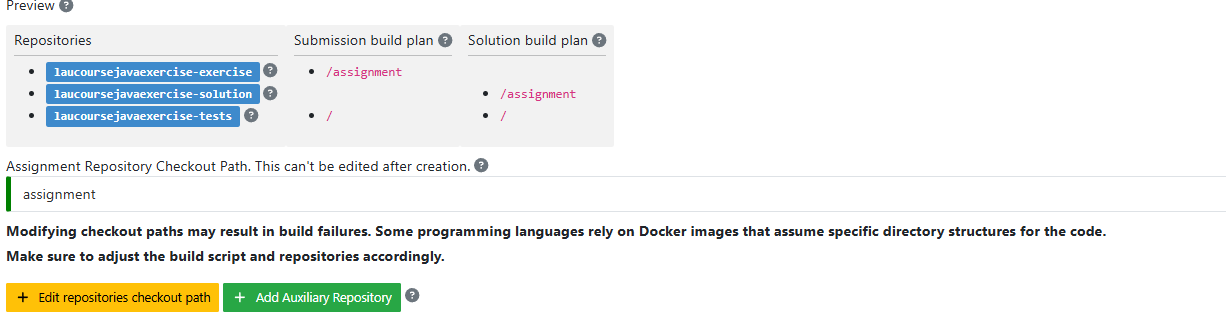
Update the build plan accordingly (see the Adapt Build Phases section).
Edit Maximum Build Duration (Optional)
Only available with Integrated Code Lifecycle
The default maximum build duration (120 seconds) usually doesn't need changes.
Use the slider to adjust the time limit for build plan execution:

Edit Container Configuration (Optional)
Only available with Integrated Code Lifecycle
In most cases, the default container configuration does not need to be changed.
Currently, instructors can change whether the container has internet access, add additional environment variables, and configure resource limits such as CPU and memory.

Disabling internet access can be useful if instructors want to prevent students from downloading additional dependencies during the build process. If internet access is disabled, the container cannot access the internet during the build process. Thus, it will not be able to download additional dependencies. The dependencies must then be included/cached in the Docker image.
Additional environment variables can be added to the container configuration. This can be useful if the build process requires specific variables to be set.
Instructors can also adjust resource limits for the container. The number of CPU cores allocated to the container can be modified, as well as the maximum amount of memory and memory swap that the container is allowed to use. These settings help ensure that resource usage is balanced while allowing for flexibility in configuring the build environment. If set too high, the specified values may be overwritten by the maximum restrictions set by the administrators. Contact the administrators for more information.
We plan to add more options to the container configuration in the future.
Configure Static Code Analysis
If static code analysis was activated, the Test repository contains configuration files.
For Java exercises, the staticCodeAnalysisConfig folder contains configuration files for each tool. Artemis generates default configurations with predefined rules. Instructors can freely customize these files.
On exercise import, configurations are copied from the imported exercise.
Supported Static Code Analysis Tools
| No. | Language | Supported Tools | Configuration File |
|---|---|---|---|
| 1 | Java | Spotbugs | spotbugs-exclusions.xml |
| Checkstyle | checkstyle-configuration.xml | ||
| PMD | pmd-configuration.xml | ||
| PMD CPD | (via PMD plugin) | ||
| 2 | Python | Ruff | ruff-student.toml |
| 3 | C | GCC | (via compiler flags) |
| 8 | Swift | SwiftLint | .swiftlint.yml |
| 10 | Rust | Clippy | clippy.toml |
| 11/14 | JavaScript/TypeScript | ESLint | eslint.config.mjs |
| 12 | R | lintr | .lintr |
| 13 | C++ | Clang-Tidy | .clang-tidy |
| 19 | Ruby | Rubocop | .rubocop.yml |
| 20 | Dart | dart analyze | analysis_options.yaml |
Adapt Interactive Problem Statement
Click on the programming exercise or navigate to and adapt the interactive problem statement. When multiple instructors edit the problem statement simultaneously, changes are synchronized in real time. See Collaborative Editing for details on real-time collaboration features.
The initial example shows how to:
- Integrate tasks
- Link tests
- Integrate interactive UML diagrams
Configure Grading
The grading configuration determines how test cases contribute to the overall score and allows configuration of code quality issue penalties.
General Actions

 Save: Save current grading configuration
 Reset: Reset the current grading configuration of the open tab to the default values. For Test Case Tab, all test cases are set to weight 1, bonus multiplier 1, and bonus points 0. For the Code Analysis Tab, the default configuration depends on the selected programming language.
 Re-evaluate All: Re-evaluate scores using currently saved settings and existing feedback
 Trigger All: Trigger all build plans to create new results with updated configuration
Test Case Configuration
Adapt test case contribution to the overall score or set grading based on tasks.

Left side configuration options:
- Task/Test Name: Task names (bold) are from the problem statement. Test names are from the Test repository
- Weight: Points for a test are proportional to weight (sum of weights as denominator). For tasks, weight is evenly distributed across test cases
- Bonus multiplier: Multiply points for passing a test without affecting other test points. For tasks, multiplier applies to all contained tests
- Bonus points: Add flat point bonus for passing a test. For tasks, bonus points are evenly distributed across test cases
- Visibility: Control feedback visibility:
- Always: Feedback visible immediately after grading
- After Due Date: Feedback visible only after due date (or individual due dates)
- Never: Feedback never visible to students. Not considered in score calculation
- Passed %: Statistics showing percentage of students passing/failing the test
Examples:
The right side displays statistics:
- Weight Distribution: Impact of each test on score
- Total Points: Percentage of points awarded per test case across all students
Code Analysis Configuration
Configure visibility and grading of code quality issues by category.

Issues are grouped into categories. The following table shows the category mappings for Java, Swift, and C:
| Category | Description | Java | Swift | C |
|---|---|---|---|---|
| Bad Practice | Code that violates recommended and essential coding practices | Spotbugs BAD_PRACTICE Spotbugs I18N PMD Best Practices | GCC BadPractice | |
| Code Style | Code that is confusing and hard to maintain | Spotbugs STYLE Checkstyle blocks Checkstyle coding Checkstyle modifier PMD Code Style | Swiftlint (all rules) | |
| Potential Bugs | Coding mistakes, error-prone code or threading errors | Spotbugs CORRECTNESS Spotbugs MT_CORRECTNESS PMD Error Prone PMD Multithreading | GCC Memory | |
| Duplicated Code | Code clones | PMD CPD | ||
| Security | Vulnerable code, unchecked inputs and security flaws | Spotbugs MALICIOUS_CODE Spotbugs SECURITY PMD Security | GCC Security | |
| Performance | Inefficient code | Spotbugs PERFORMANCE PMD Performance | ||
| Design | Program structure/architecture and object design | Checkstyle design PMD Design | ||
| Code Metrics | Violations of code complexity metrics or size limitations | Checkstyle metrics Checkstyle sizes | ||
| Documentation | Code with missing or flawed documentation | Checkstyle javadoc Checkstyle annotation PMD Documentation | ||
| Naming & Format | Rules that ensure the readability of the source code (name conventions, imports, indentation, annotations, white spaces) | Checkstyle imports Checkstyle indentation Checkstyle naming Checkstyle whitespace | ||
| Miscellaneous | Uncategorized rules | Checkstyle miscellaneous | GCC Misc |
Other languages use categories defined by their static code analysis tool:
- JavaScript, TypeScript, C++, R: Only use the
Lintcategory - Dart: Dart's analyzer can generate these categories:
TODOHINTCOMPILE_TIME_ERRORCHECKED_MODE_COMPILE_TIME_ERRORSTATIC_WARNINGSYNTACTIC_ERRORLINT
- Python: Uses Ruff's tool names
- Ruby: Uses Rubocop's Department names
- Rust: Uses Clippy's lint groups
On the left side of the page, instructors can configure the static code analysis categories:
- Category: The name of the category defined by Artemis
- State:
INACTIVE: Code quality issues of an inactive category are not shown to students and do not influence the score calculationFEEDBACK: Code quality issues of a feedback category are shown to students but do not influence the score calculationGRADED: Code quality issues of a graded category are shown to students and deduct points according to the Penalty and Max Penalty configuration
- Penalty: Artemis deducts the selected amount of points for each code quality issue from points achieved by passing test cases
- Max Penalty: Limits the amount of points deducted for code quality issues belonging to this category
- Detected Issues: Visualizes how many students encountered a specific number of issues in this category
Verify Exercise Configuration
Open the  page of the programming exercise.

Verify:
- Template result: Score 0% with "0 of X passed" (or "0 of X passed, 0 issues" with SCA)
- Solution result: Score 100% with "X of X passed" (or "X of X passed, 0 issues" with SCA)
Review Template/Solution Differences
Review differences between template and solution repositories to verify expected student changes.

Click the  button to open the comparison view.
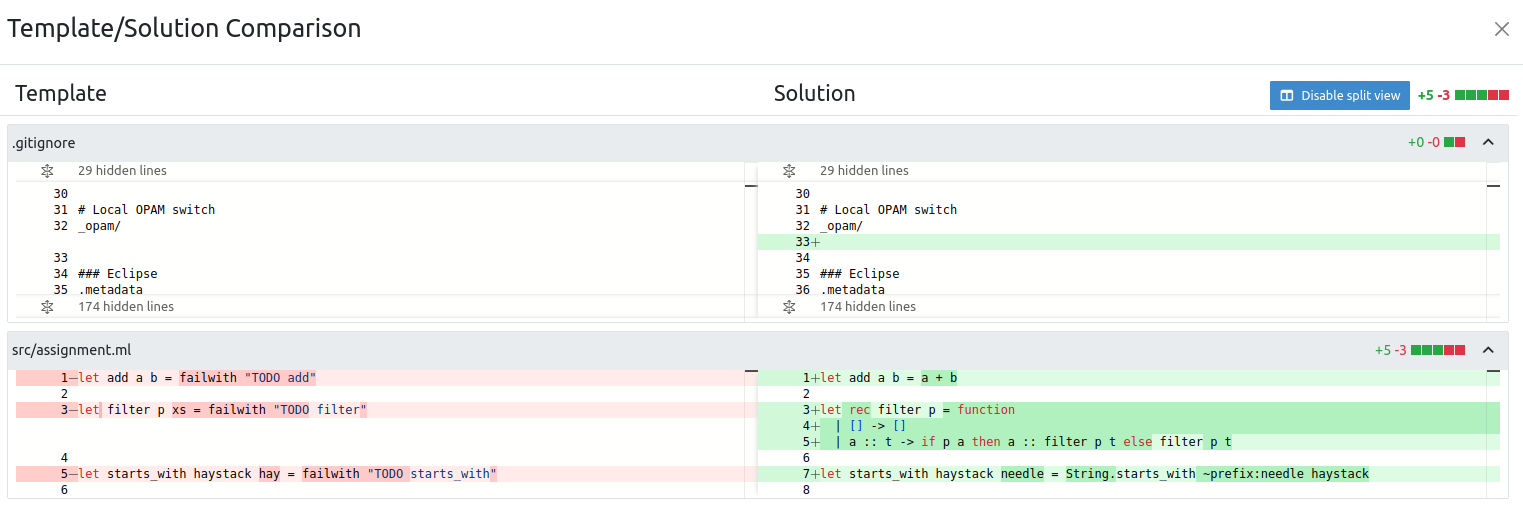
Verify Problem Statement Integration
Click . Below the problem statement, verify:
- Test cases: OK
- Hints: OK

Feedback Analysis
After verifying the exercise configuration, the Feedback Analysis feature helps identify common student mistakes and improve grading efficiency.
Accessing Feedback Analysis:
- Navigate to Exercise Management
- Open the programming exercise
- Go to the grading section
- Click the Feedback Analysis tab
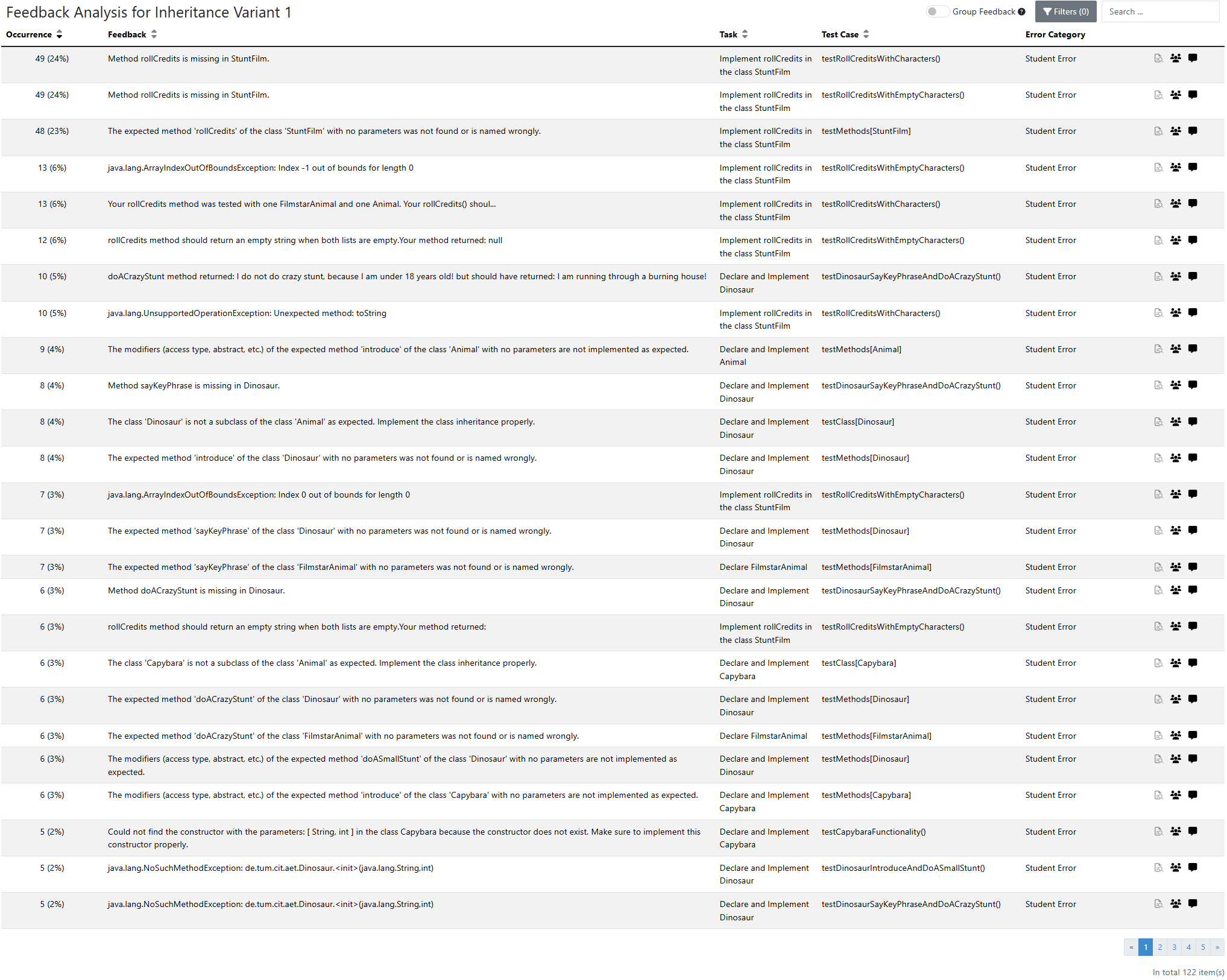
Key Features:
-
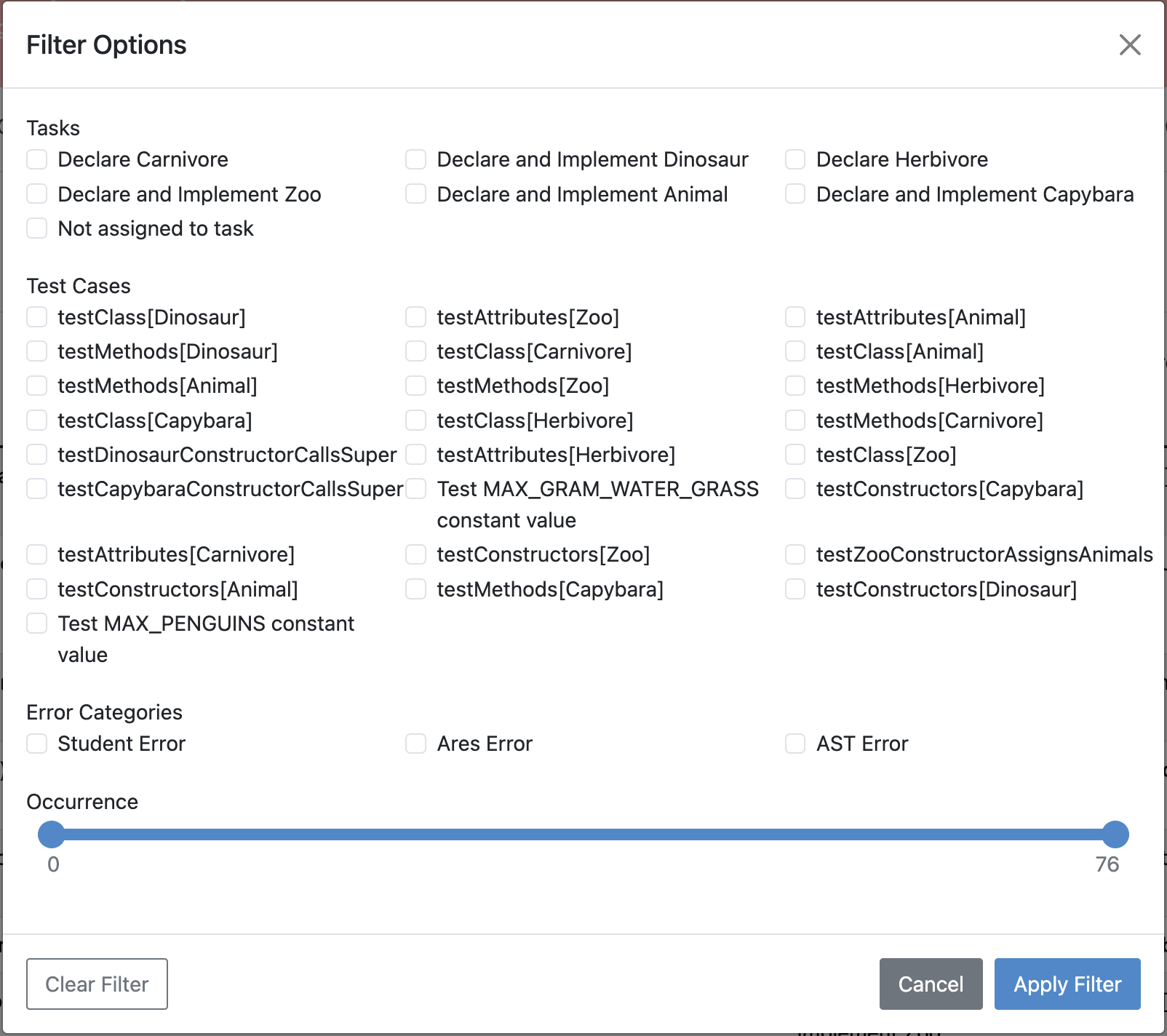
Filtering and Sorting
Filter by tasks, test cases, error categories, and occurrence frequency. Sort based on count or relevance.
Filtering Options -
Affected Students Overview
View students affected by specific feedback and access their repositories for review.
Affected Students View -
Aggregated Feedback
- To avoid many single entries in case of testcases using random values and generating similar feedback, Groups similar feedback messages together all feedback to highlight frequently occurring errors.
- Displays grouped occurrence counts and relative frequencies to help instructors prioritize common issues.
-
Detailed Inspection
Click feedback entries to view full details in a modal window.
Detailed Feedback View -
Communication & Collaboration
Create discussion channels directly from the feedback analysis view for collaborative grading.
Creating a Feedback Discussion Channel


Static Code Analysis Default Configuration
The following sections list the rules that are active for the default static code analysis configuration.
Java
Spotbugs
All tool categories and their rules are active by default except for the NOISE and EXPERIMENTAL category. Refer to the Spotbugs documentation for a description of all rules.
Checkstyle
This table contains all rules that are activated by default when creating a new programming exercise. You can suppress a complete category by changing its visibility in the grading settings. For a more fine-granular configuration, you can add or remove rules by editing the checkstyle-configuration.xml file. For a description of the rules refer to the Checkstyle documentation.
| Category (Tool/Artemis) | Rule | Properties |
|---|---|---|
| Coding / Code Style | EmptyStatement | |
| EqualsHashCode | ||
| HiddenField | ignoreConstructorParameter="true" | |
| ignoreSetter="true" | ||
| setterCanReturnItsClass="true" | ||
| IllegalInstantiation | ||
| InnerAssignment | ||
| MagicNumber | ||
| MissingSwitchDefault | ||
| MultipleVariableDeclarations | ||
| SimplifyBooleanExpression | ||
| SimplifyBooleanReturn | ||
| Class Design / Design | FinalClass | |
| HideUtilityClassConstructor | ||
| InterfaceIsType | ||
| VisibilityModifier | ||
| Block Checks / Code Style | AvoidNestedBlocks | |
| EmptyBlock | ||
| NeedBraces | ||
| Modifiers / Code Style | ModifierOrder | |
| RedundantModifier | ||
| Size Violations / Code Metrics | MethodLength | |
| ParameterNumber | ||
| FileLength | ||
| LineLength | max="120" | |
| Imports / Naming & Formatting | IllegalImport | |
| RedundantImport | ||
| UnusedImports | processJavadoc="false" | |
| Naming Conventions / Naming & Formatting | ConstantName | |
| LocalFinalVariableName | ||
| LocalVariableName | ||
| MemberName | ||
| MethodName | ||
| ParameterName | ||
| TypeName | ||
| Whitespace / Naming & Formatting | EmptyForIteratorPad | |
| GenericWhitespace | ||
| MethodParamPad | ||
| NoWhitespaceAfter | ||
| NoWhitespaceBefore | ||
| OperatorWrap | ||
| ParenPad | ||
| TypecastParenPad | ||
| WhitespaceAfter | ||
| WhitespaceAround | ||
| Javadoc Comments / Documentation | InvalidJavadocPosition | |
| JavadocMethod | ||
| JavadocType | ||
| JavadocStyle | ||
| MissingJavadocMethod | allowMissingPropertyJavadoc="true" | |
| allowedAnnotations="Override,Test" | ||
| tokens="METHOD_DEF,ANNOTATION_FIELD_DEF,COMPACT_CTOR_DEF" | ||
| Miscellaneous / Miscellaneous | ArrayTypeStyle | |
| UpperEll | ||
| NewlineAtEndOfFile | ||
| Translation |
PMD
For a description of the rules refer to the PMD documentation.
| Category (Tool/Artemis) | Rule |
|---|---|
| Best Practices / Bad Practice | AvoidUsingHardCodedIP |
| CheckResultSet | |
| UnusedFormalParameter | |
| UnusedLocalVariable | |
| UnusedPrivateField | |
| UnusedPrivateMethod | |
| PrimitiveWrapperInstantiation | |
| Code Style / Code Style | UnnecessaryImport |
| ExtendsObject | |
| ForLoopShouldBeWhileLoop | |
| TooManyStaticImports | |
| UnnecessaryFullyQualifiedName | |
| UnnecessaryModifier | |
| UnnecessaryReturn | |
| UselessParentheses | |
| UselessQualifiedThis | |
| EmptyControlStatement | |
| Design / Design | CollapsibleIfStatements |
| SimplifiedTernary | |
| UselessOverridingMethod | |
| Error Prone / Potential Bugs | AvoidBranchingStatementAsLastInLoop |
| AvoidDecimalLiteralsInBigDecimalConstructor | |
| AvoidMultipleUnaryOperators | |
| AvoidUsingOctalValues | |
| BrokenNullCheck | |
| CheckSkipResult | |
| ClassCastExceptionWithToArray | |
| DontUseFloatTypeForLoopIndices | |
| ImportFromSamePackage | |
| JumbledIncrementer | |
| MisplacedNullCheck | |
| OverrideBothEqualsAndHashcode | |
| ReturnFromFinallyBlock | |
| UnconditionalIfStatement | |
| UnnecessaryConversionTemporary | |
| UnusedNullCheckInEquals | |
| UselessOperationOnImmutable | |
| Multithreading / Potential Bugs | AvoidThreadGroup |
| DontCallThreadRun | |
| DoubleCheckedLocking | |
| Performance / Performance | BigIntegerInstantiation |
| Security / Security | All rules |
PMD CPD
Artemis uses the following default configuration to detect code duplications for the category Copy/Paste Detection. For a description of the various PMD CPD configuration parameters refer to the PMD CPD documentation.
<!-- Minimum amount of duplicated tokens triggering the copy-paste detection -->
<minimumTokens>60</minimumTokens>
<!-- Ignore literal value differences when evaluating a duplicate block.
If true, foo=42; and foo=43; will be seen as equivalent -->
<ignoreLiterals>true</ignoreLiterals>
<!-- Similar to ignoreLiterals but for identifiers, i.e. variable names, methods names.
If activated, most tokens will be ignored, so minimumTokens must be lowered significantly -->
<ignoreIdentifiers>false</ignoreIdentifiers>
C
GCC
For a description of the rules/warnings refer to the GCC Documentation. For readability reasons the rule/warning prefix -Wanalyzer- is omitted.
| Category (Tool/Artemis) | Rule |
|---|---|
| Memory Management / Potential Bugs | free-of-non-heap |
| malloc-leak | |
| file-leak | |
| mismatching-deallocation | |
| Undefined Behavior / Potential Bugs | double-free |
| null-argument | |
| use-after-free | |
| use-of-uninitialized-value | |
| write-to-const | |
| write-to-string-literal | |
| possible-null-argument | |
| possible-null-dereference | |
| Bad Practice / Bad Practice | double-fclose |
| too-complex | |
| stale-setjmp-buffer | |
| Security / Security | exposure-through-output-file |
| unsafe-call-within-signal-handler | |
| use-of-pointer-in-stale-stack-frame | |
| tainted-array-index | |
| Miscellaneous / Miscellaneous | Rules not matching to above categories |
Exercise Import
Exercise import copies repositories, build plans, interactive problem statement, and grading configuration from an existing exercise.
Import Steps
-
Open Course Management
Open
and navigate to Exercises of your preferred course.Course Management - Exercises -
Import Programming Exercise
Click Import Programming Exercise.
Import Programming Exercise Button Select an exercise to import.
Exercise Selection Modal -
Configure Import Options
Import Options - Recreate Build Plans: Create new build plans instead of copying from imported exercise
- Update Template: Update template files in repositories. Useful for outdated exercises. For Java, replaces JUnit4 with Ares (JUnit5) and updates dependencies. May require test case adaptation
-
Complete Import
Fill mandatory values and click
 .
.


Manual Assessment
You can use the online editor to assess student submissions directly in the browser.

The online editor provides features tailored to assessment:
- File browser: Shows student submission files. Changed files are highlighted in yellow
- Build output: Shows build process output, useful for build errors
- Read-only editor: View student code with changed lines highlighted
- Instructions: Provides structured grading criteria and problem statement, including tasks successfully solved (determined by test cases). Review test cases by clicking the passing test count next to tasks
- Result: Top right corner shows current submission result. Click to review test cases and feedback
Add feedback directly in source code by hovering over a line and clicking  . Alternatively, press "+" key when editor is focused to open feedback widget at cursor line.

After clicking :
- Enter feedback comment and score
- Or drag structured assessment criteria from instructions to feedback area
- Click
 to save
 - Click
 to discard

Add general feedback (not tied to specific file/line) by scrolling to bottom and clicking  .
.
Save changes with (top right). Finalize assessment with  .
.
Repository Access Configuration
If you are a student looking for repository access information, see the student documentation on integrated code lifecycle setup.
The following sections explain repository types and access rights for different user roles.
Repository Types
| Repository Type | Description |
|---|---|
| Base | Repositories set up during exercise creation (template, solution, tests, auxiliary repositories) |
| Student Assignment | Student's assignment repository copied from template. Includes team assignments |
| Teaching Assistant Assignment | Assignment repository created by a Teaching Assistant for themselves |
| Instructor Assignment | Assignment repository created by editor/instructor. Not available for exam exercises |
| Student Practice | Student's practice repository (from template or assignment). Created after due date. Not available for exams |
| Teaching Assistant Practice | Practice repository created by Teaching Assistant. Not available for exams |
| Instructor Practice | Practice repository created by editor/instructor. Not available for exams |
| Instructor Exam Test Run | Test run repository for exam testing before release. Should be deleted before exam |
User Roles
| Role | Description |
|---|---|
| Student | Course student |
| Teaching Assistant | Course tutor |
| Editor | Course editor |
| Instructor | Course instructor |
Time Periods
- Before start: Before exercise/exam start date
- Working time: After start date, before due/end date
- After due: After due/end date
Read access (R) includes git fetch, git clone, git pull.
Write access (W) corresponds to git push.
Access Rights Table
| Repository Type | Role | Time Period | Access |
|---|---|---|---|
| Base | Student | all | none |
| Teaching Assistant | all | R | |
| Instructor | all | R/W | |
| Student Assignment | Student | Before start | none |
| Student | Working time | R/W | |
| Student | After due | R¹ | |
| Teaching Assistant | all | R | |
| Instructor | all | R/W | |
| Teaching Assistant Assignment | Student | all | none |
| Teaching Assistant | Before start | R | |
| Teaching Assistant | Working time | R/W | |
| Teaching Assistant | After due | R | |
| Instructor | all | R/W | |
| Instructor Assignment | Student | all | none |
| Teaching Assistant | all | R | |
| Instructor | all | R/W² | |
| Student Practice | Student | Before start | none |
| Student | Working time | none | |
| Student | After due | R/W | |
| Teaching Assistant | Before start | none | |
| Teaching Assistant | Working time | none | |
| Teaching Assistant | After due | R | |
| Instructor | Before start | none | |
| Instructor | Working time | none | |
| Instructor | After due | R/W | |
| Teaching Assistant Practice | Student | all | none |
| Teaching Assistant | Before start | none | |
| Teaching Assistant | Working time | none | |
| Teaching Assistant | After due | R/W | |
| Instructor | Before start | none | |
| Instructor | Working time | none | |
| Instructor | After due | R/W | |
| Instructor Practice | Student | all | none |
| Teaching Assistant | Before start | none | |
| Teaching Assistant | Working time | none | |
| Teaching Assistant | After due | R | |
| Instructor | Before start | none | |
| Instructor | Working time | none | |
| Instructor | After due | R/W | |
| Instructor Exam Test Run | Student | all | none |
| Teaching Assistant | all | R | |
| Instructor | all | R/W |
Notes:
-
Only valid for course exercises. Students cannot read exam exercise repositories after due date.
-
Instructors can access Instructor Assignment repository via online editor from Course Management (Edit in editor) or Course Overview (Open code editor). After due date, push only via online editor from Course Management or local Git client. Online editor from Course Overview shows locked repository.
Testing with Ares
Ares is a JUnit 5 extension for easy and secure Java testing on Artemis.
Main features:
- Security manager to prevent students from crashing tests or cheating
- More robust tests and builds with limits on time, threads, and I/O
- Support for public and hidden Artemis tests with custom due dates
- Utilities for improved feedback (multiline error messages, exception location hints)
- Utilities to test exercises using System.out and System.in
For more information see Ares GitHub
Best Practices for Writing Test Cases
The following sections describe best practices for writing test cases. Examples are specifically for Java (using Ares/JUnit5), but practices can be generalized for other languages.
General Best Practices
Write Meaningful Comments for Tests
Comments should contain:
- What is tested specifically
- Which task from problem statement is addressed
- How many points the test is worth
- Additional necessary information
Keep information consistent with Artemis settings like test case weights.
/**
 * Tests that borrow() in Book successfully sets the available attribute to false
 * Problem Statement Task 2.1
 * Worth 1.5 Points (Weight: 1)
 */
@Test
public void testBorrowInBook() {
    // Test Code
}
Better yet, use comments in display names for manual correction:
@DisplayName("1.5 P | Books can be borrowed successfully")
@Test
public void testBorrowInBook() {
    // Test Code
}
Use Appropriate and Descriptive Names for Test Cases
Test names are used for statistics. Avoid generic names like test1, test2, test3.
@Test
public void testBorrowInBook() {
    // Test Code
}
If tests are in different (nested) classes, add class name to avoid duplicates:
@Test
public void test_LinkedList_add() {
    // Test Code
}
Use Appropriate Timeouts for Test Cases
For regular tests, @StrictTimeout(1) (1 second) is usually sufficient. For shorter timeouts:
@Test
@StrictTimeout(value = 500, unit = TimeUnit.MILLISECONDS)
public void testBorrowInBook() {
    // Test Code
}
Can also be applied to entire test class.
Avoid Assert Statements
Use conditional fail() calls instead to hide confusing information from students.
❌ Not recommended:
@Test
public void testBorrowInBook() {
    Object book = newInstance("Book", 0, "Some title");
    invokeMethod(book, "borrow");
    assertFalse((Boolean) invokeMethod(book, "isAvailable"),
                "A borrowed book must be unavailable!");
}
Shows: org.opentest4j.AssertionFailedError: A borrowed book must be unavailable! ==> Expected <false> but was <true>
✅ Recommended:
@Test
public void testBorrowInBook() {
    Object book = newInstance("Book", 0, "Some title");
    invokeMethod(book, "borrow");
    if ((Boolean) invokeMethod(book, "isAvailable")) {
        fail("A borrowed book is not available anymore!");
    }
}
Shows: org.opentest4j.AssertionFailedError: A borrowed book is not available anymore!
Write Tests Independent of Student Code
Students can break anything. Use reflective operations instead of direct code references.
❌ Not recommended (causes build errors):
@Test
public void testBorrowInBook() {
    Book book = new Book(0, "Some title");
    book.borrow();
    if (book.isAvailable()) {
        fail("A borrowed book must be unavailable!");
    }
}
✅ Recommended (provides meaningful errors):
@Test
public void testBorrowInBook() {
    Object book = newInstance("Book", 0, "Some title");
    invokeMethod(book, "borrow");
    if ((Boolean) invokeMethod(book, "isAvailable")) {
        fail("A borrowed book must be unavailable!");
    }
}
Error message: The class 'Book' was not found within the submission. Make sure to implement it properly.
Check for Hard-Coded Student Solutions
Students may hardcode values to pass specific tests. Verify solutions fulfill actual requirements, especially in exams.
Avoid Relying on Specific Task Order
Tests should cover one aspect without requiring different parts to be implemented.
Example: Testing translate and runService methods where runService calls translate.
❌ Not recommended (assumes translate is implemented):
@Test
public void testRunServiceInTranslationServer() {
    String result = translationServer.runService("French", "Dog");
    assertEquals("Dog:French", result);
}
✅ Recommended (overrides translate to test runService independently):
@Test
public void testRunServiceInTranslationServer() {
    TranslationServer testServer = new TranslationServer() {
        public String translate(String word, String language) {
            return word + ":" + language;
        }
    };
    String expected = "Dog:French";
    String actual = testServer.runService("French", "Dog");
    if(!expected.equals(actual)) fail("Descriptive fail message");
}
Catch Possible Student Errors
Handle student mistakes appropriately. For example, null returns can cause NullPointerException.
@Test
public void testBorrowInBook() {
    Object book = newInstance("Book", 0, "Some title");
    Object result = invokeMethod(book, "getTitle");
    if (result == null) {
        fail("getTitle() returned null!");
    }
    // Continue with test
}
Java Best Practices
Use Constant String Attributes for Base Package
Avoid repeating long package identifiers:
private static final String BASE_PACKAGE = "de.tum.in.ase.pse.";

@Test
public void testBorrowInBook() {
    Object book = newInstance(BASE_PACKAGE + "Book", 0, "Some title");
    // Test Code
}
Use JUnit5 and Ares Features
More information: JUnit5 Documentation and Ares GitHub
Useful features:
- Nested Tests to group tests
@Orderto define custom test execution orderassertDoesNotThrowfor exception handling with custom messagesassertAllto aggregate multiple assertion failures- Dynamic Tests for special needs
- Custom extensions
- JUnit Platform Test Kit for testing tests
Define Custom Annotations
Combine annotations for better readability:
@Test
@StrictTimeout(10)
@Retention(RetentionPolicy.RUNTIME)
@Target({ElementType.METHOD})
public @interface LongTest {
}
Consider Using jqwik for Property-Based Testing
jqwik allows testing with arbitrary inputs and shrinks errors to excellent counter-examples (usually edge cases).
Eclipse Compiler and Best-Effort Compilation
Use Eclipse Java Compiler for partial, best-effort compilation. Useful for exam exercises and complicated generics.
Compilation errors are transformed into errors thrown where code doesn't compile (method/class level). The body is replaced with throw new Error("Unresolved compilation problems: ...").
See old documentation for Maven configuration examples.
Common Pitfalls / Problems
- Reflection API limitation: Constant attributes (static final primitives/Strings) are inlined at compile-time, making them impossible to change at runtime
- Long output: Arrays or Strings with long output may be unreadable or truncated after 5000 characters
Submission Policy Configuration
Submission policies define the effect of a submission on participant progress. A programming exercise can have zero or one submission policy (never more than one). Policies are specified during exercise creation and can be adjusted in the grading configuration later.
Submission Policy Types
Choosing the right policy depends on the exercise and teaching style. Lock repository and submission penalty policies combat trial-and-error solving approaches.
1. None
No submission policy. Participants can submit as often as they want until the due date.

2. Lock Repository
Participants can submit a fixed number of times. After reaching the limit, the repository is locked and further submissions are prevented.

With the example configuration shown above, participants can submit 5 times. After the 5th submission, Artemis locks the repository, preventing further pushes.
3. Submission Penalty
Participants can submit as often as they want. For each submission exceeding the limit, the penalty is deducted from the score.

With the example configuration above:
- First 3 submissions: no penalty
- 4th submission: 1.5 points deducted
- 5th submission: 3 points deducted (1.5 × 2 submissions exceeding limit)
- Score cannot be negative
Example: Student achieves 6 out of 12 points on 4th submission. With 1.5 point penalty, final score is 4.5 out of 12.
Students receive feedback explaining the deduction:


Updating Submission Policies
After generating an exercise, submission policies can be updated on the grading page.

(De)activating Submission Policies
- Active policy: Shows
 button
 - Inactive policy: Shows
 button
When deactivated, Artemis no longer enforces the policy. Locked repositories are unlocked. For submission penalty policies, press to apply changes.
Updating Submission Policies
Modify configuration and press  . The effect of the former policy is removed and the new policy is applied. For submission penalty policies, press to update results.
Deleting Submission Policies
Select None as policy type and press . Locked repositories are unlocked. For submission penalty policies, press to revert effects.
Java DejaGnu: Blackbox Testing
Classical testing frameworks like JUnit allow writing whitebox tests, which enforce assumptions about code structure (class names, method names, signatures). This requires specifying all structural aspects for tests to run on student submissions. That may be okay or even desired for a beginner course.
For advanced courses, this is a downside: students cannot make their own structural decisions and gain experience in this important programming aspect.
DejaGnu enables blackbox tests for command line interfaces. Tests are written in Expect Script (extension of Tcl). Expect is a Unix utility for automatic interaction with programs exposing text terminal interfaces in a robust way.
Test scripts:
- Start the program as a separate process (possibly several times)
- Interact via textual inputs (standard input)
- Read outputs and make assertions (exact or regex matching)
- Decide next inputs based on output, simulating user interaction
For exercises, only specify:
- Command line interface syntax
- Rough output format guidance
Source code structure is up to students as far as you want.
Source code structure quality assessment can be done manually after submission deadline. The template uses Maven to compile student code, so it can be extended with regular unit tests (e.g., architecture tests for cyclic package dependencies) and report the results for both to the student.
Usage: Consult official documentation and initial test-repository content. DejaGnu files are in the testsuite directory. The ….tests directory contains three example test execution scripts.
Example: PROGRAM_TEST {add x} {} puts "add x" into the program and expects no output.
Helper functions like PROGRAM_TEST are defined in config/default.exp.
Variables in SCREAMING_SNAKE_CASE (e.g., MAIN_CLASS) are replaced with actual values in previous build plan steps. For example, the build plan finds the Java class with main method and replaces MAIN_CLASS.
Best Expect documentation: Exploring Expect book. The Artemis default template contains reusable helper functions in config/default.exp for common I/O use cases.
This exercise type makes it quite easy to reuse existing exercises from the Praktomat autograder system.
Sending Feedback back to Artemis
By default, unit test results are extracted and sent to Artemis automatically. Only custom setups may need semi-automatic approaches.
Jenkins
In Jenkins CI, test case feedback is extracted from XML files in JUnit format. The Jenkins plugin reads files from a results folder in the Jenkins workspace top level. Regular unit test files are copied automatically.
For custom test case feedback, create a customFeedbacks folder at workspace top level. In this folder, create JSON files for each test case feedback:
{
  "name": string,
  "successful": boolean,
  "message": string
}
- name: Test case name as shown on 'Configure Grading' page. Must be non-null and non-empty
- successful: Indicates test case success/failure. Defaults to false if not present
- message: Additional information shown to student. Required for non-successful tests, optional otherwise
Integrated Code Lifecycle
The Artemis Integrated Code Lifecycle allows using programming exercises fully integrated within Artemis, without external tools. Find more information in the Integrated Code Lifecycle documentation.