Configure Grading and Verify the Exercise
Grading decides how test results become points: which tests count, how much, and when students get to see them. Once that is set, verifying the exercise means checking that the template scores zero, the solution scores full marks, and every task is bound to a test that actually exists.
This page also covers what you do once students are working: reviewing common mistakes with feedback analysis, and assessing submissions by hand where the exercise calls for it.
Check the Template and Solution Builds
The exercise details page combines repository access and build results in two panels: Template for the student's starting point and Solution for the reference implementation. Each panel groups Code, repository download, the latest result, the rebuild control and its submission-history link. Labeled checkout paths show which repositories each build uses. The shared test repository and any auxiliary repositories appear below the panels, followed by the Template/Solution Comparison.
Select the exercise title on the course's exercise list and scroll to Repositories and builds to find these panels. Code opens the repository actions; editors can choose Edit in editor there. Download Repository downloads that panel's repository, while More actions → Download Exercise downloads the complete exercise.
The expected baseline is 0% for the template and 100% for the solution. A yellow warning triangle appears beside an unexpected result and beside the exercise's title in the course exercise list. Hover or focus the warning to read its explanation. Solution builds that fail tests also show the warning, even when bonus points bring the score to 100% or more. Fully passing solutions may exceed 100% when bonus points are configured and do not show a warning. Results that have not been loaded are not treated as successful builds.
Configure Grading
Open Grading in the exercise detail action bar. The grading configuration determines how test cases contribute to the overall score and allows configuration of code quality issue penalties.
General Actions

- Save: Save current grading configuration
- Reset: Reset the current grading configuration of the open tab to the default values. For Test Case Tab, all test cases are set to weight 1, bonus multiplier 1, bonus points 0, and their visibility back to the exercise default — which is Always for a course exercise but After Due Date for an exam exercise, so a reset in exam mode also changes when students see feedback. For the Code Analysis Tab, the default configuration depends on the selected programming language.
- Re-evaluate All: Re-evaluate scores using currently saved settings and existing feedback
- Trigger All: Trigger all build plans to create new results with updated configuration. Artemis queues the builds gradually in the background, so that the build agents are not overloaded and students' own submissions are not stuck behind the rebuild. For an exercise with many participations, the new results can take a while to appear.
Test Case Configuration
Adapt test case contribution to the overall score or set grading based on tasks.

Left side configuration options:
- Task/Test Name: Task names (bold) are from the problem statement. Test names are from the Test repository
- Weight: Points for a test are proportional to weight (sum of weights as denominator). For tasks, weight is evenly distributed across test cases
- Bonus multiplier: Multiply points for passing a test without affecting other test points. For tasks, multiplier applies to all contained tests
- Bonus points: Add flat point bonus for passing a test. For tasks, bonus points are evenly distributed across test cases
- Visibility: Control feedback visibility:
- Always: Feedback visible immediately after grading
- After Due Date: Feedback visible only after due date (or individual due dates)
- Never: Feedback never visible to students. Not considered in score calculation
- Passed %: Statistics showing percentage of students passing/failing the test
Examples:
The right side displays statistics:
- Weight Distribution: Impact of each test on score
- Total Points: Percentage of points awarded per test case across all students
Code Analysis Configuration
Configure visibility and grading of code quality issues by category.

Issues are grouped into categories. The following table shows the category mappings for Java, Swift, and C:
| Category | Description | Java | Swift | C |
|---|---|---|---|---|
| Bad Practice | Code that violates recommended and essential coding practices | Spotbugs BAD_PRACTICE Spotbugs I18N PMD Best Practices | GCC BadPractice | |
| Code Style | Code that is confusing and hard to maintain | Spotbugs STYLE Checkstyle blocks Checkstyle coding Checkstyle modifier PMD Code Style | Swiftlint (all rules) | |
| Potential Bugs | Coding mistakes, error-prone code or threading errors | Spotbugs CORRECTNESS Spotbugs MT_CORRECTNESS PMD Error Prone PMD Multithreading | GCC Memory | |
| Duplicated Code | Code clones | PMD CPD | ||
| Security | Vulnerable code, unchecked inputs and security flaws | Spotbugs MALICIOUS_CODE Spotbugs SECURITY PMD Security | GCC Security | |
| Performance | Inefficient code | Spotbugs PERFORMANCE PMD Performance | ||
| Design | Program structure/architecture and object design | Checkstyle design PMD Design | ||
| Code Metrics | Violations of code complexity metrics or size limitations | Checkstyle metrics Checkstyle sizes | ||
| Documentation | Code with missing or flawed documentation | Checkstyle javadoc Checkstyle annotation PMD Documentation | ||
| Naming & Format | Rules that ensure the readability of the source code (name conventions, imports, indentation, annotations, white spaces) | Checkstyle imports Checkstyle indentation Checkstyle naming Checkstyle whitespace | ||
| Miscellaneous | Uncategorized rules | Checkstyle miscellaneous | GCC Misc |
Other languages use categories defined by their static code analysis tool:
- JavaScript, TypeScript, C++, R, Go: Only use the
Lintcategory - Dart: Dart's analyzer can generate these categories:
TODOHINTCOMPILE_TIME_ERRORCHECKED_MODE_COMPILE_TIME_ERRORSTATIC_WARNINGSYNTACTIC_ERRORLINT
- Python: Uses Ruff's tool names
- Ruby: Uses Rubocop's Department names
- Rust: Uses Clippy's lint groups
- Kotlin: Uses the rule sets of detekt:
complexity,coroutines,empty-blocks,exceptions,naming,performance,potential-bugsandstyle. Rules of other rule sets are reported asother - C#: Uses the categories of the .NET analyzers, e.g.
Design,Naming,PerformanceandUsage. Compiler warnings are reported asCompiler. Diagnostics that do not point to a source location, such as some project-level analyzer rules, are not reported
On the left side of the page, instructors can configure the static code analysis categories:
- Category: The name of the category defined by Artemis
- State:
INACTIVE: Code quality issues of an inactive category are not shown to students and do not influence the score calculationFEEDBACK: Code quality issues of a feedback category are shown to students but do not influence the score calculationGRADED: Code quality issues of a graded category are shown to students and deduct points according to the Penalty and Max Penalty configuration
- Penalty: Artemis deducts the selected amount of points for each code quality issue from points achieved by passing test cases
- Max Penalty: Limits the amount of points deducted for code quality issues belonging to this category
- Detected Issues: Visualizes how many students encountered a specific number of issues in this category
Submission Policy Configuration
Submission policies define the effect of a submission on participant progress. A programming exercise can have zero or one submission policy (never more than one). Policies are specified during exercise creation and can be adjusted in the grading configuration later.
Submission Policy Types
Choosing the right policy depends on the exercise and teaching style. Lock repository and submission penalty policies combat trial-and-error solving approaches.
None
No submission policy. Participants can submit as often as they want until the due date.

Lock Repository
Participants can submit a fixed number of times. After reaching the limit, the repository is locked and further submissions are prevented.

With the example configuration shown above, participants can submit 5 times. After the 5th submission, Artemis locks the repository, preventing further pushes.
Submission Penalty
Participants can submit as often as they want. For each submission exceeding the limit, the penalty is deducted from the score.

With the example configuration above:
- First 3 submissions: no penalty
- 4th submission: 1.5 points deducted
- 5th submission: 3 points deducted (1.5 × 2 submissions exceeding limit)
- Score cannot be negative
Example: Student achieves 6 out of 12 points on 4th submission. With 1.5 point penalty, final score is 4.5 out of 12.
Students receive feedback explaining the deduction:


Managing Submission Policies
After generating an exercise, submission policies can be updated on the grading page.

(De)activating Submission Policies
- Active policy: Shows Deactivate button
- Inactive policy: Shows Activate button
When deactivated, Artemis no longer enforces the policy. Locked repositories are unlocked. For submission penalty policies, press Re-evaluate All to apply changes.
Updating Submission Policies
Modify configuration and press Update. The effect of the former policy is removed and the new policy is applied. For submission penalty policies, press Re-evaluate All to update results.
Deleting Submission Policies
Select None as policy type and press Update. Locked repositories are unlocked. For submission penalty policies, press Re-evaluate All to revert effects.
Verify Exercise Configuration
Select the programming exercise's title in course management and scroll to Repositories and builds.

Verify:
- Template: Score 0% with "0 of X passed" (or "0 of X passed, 0 issues" with SCA).
- Solution: Score at least 100% with all tests passed. A fully passing solution may exceed 100% when bonus points are configured; failed tests still produce a warning even if bonus points raise the score to 100% or more.
Review Template/Solution Differences
Below the build panels, Tests and any auxiliary repositories appear once with their own repository controls. The Template/Solution Comparison follows them. Review the differences between the template and solution repositories to verify the changes expected from students.

Review Changes opens the comparison view.

Verify Problem Statement Integration
Click Edit and check the analysis below the problem statement. It should read Test cases ok., meaning every test named in a task exists in the test repository, every test in the repository is referenced by a task, and no test is referenced twice.
If it reports issues instead, hover it to see which test names are affected. See Check the Bindings.
Reset the Exercise
If the exercise is in a state you cannot repair by editing it — a broken template that every student has already cloned, or a build plan that no longer matches the repositories — you can reset it. Open the exercise in Course Management and choose Reset.
The dialog lets you select which operations to perform:
- Delete all student participations, submissions and results. Every student starts again from the current template.
- Recreate the build plans (BASE and SOLUTION) from the latest exercise template, overwriting any changes you made to them. For an exercise with a customized build plan, this resets that customization to the template default instead.
To confirm, you have to type the exercise title.
Feedback Analysis
After verifying the exercise configuration, the Feedback Analysis feature helps identify common student mistakes and improve grading efficiency.
Accessing Feedback Analysis:
- Navigate to Exercise Management
- Open the programming exercise
- Go to the grading section
- Click the Feedback Analysis tab
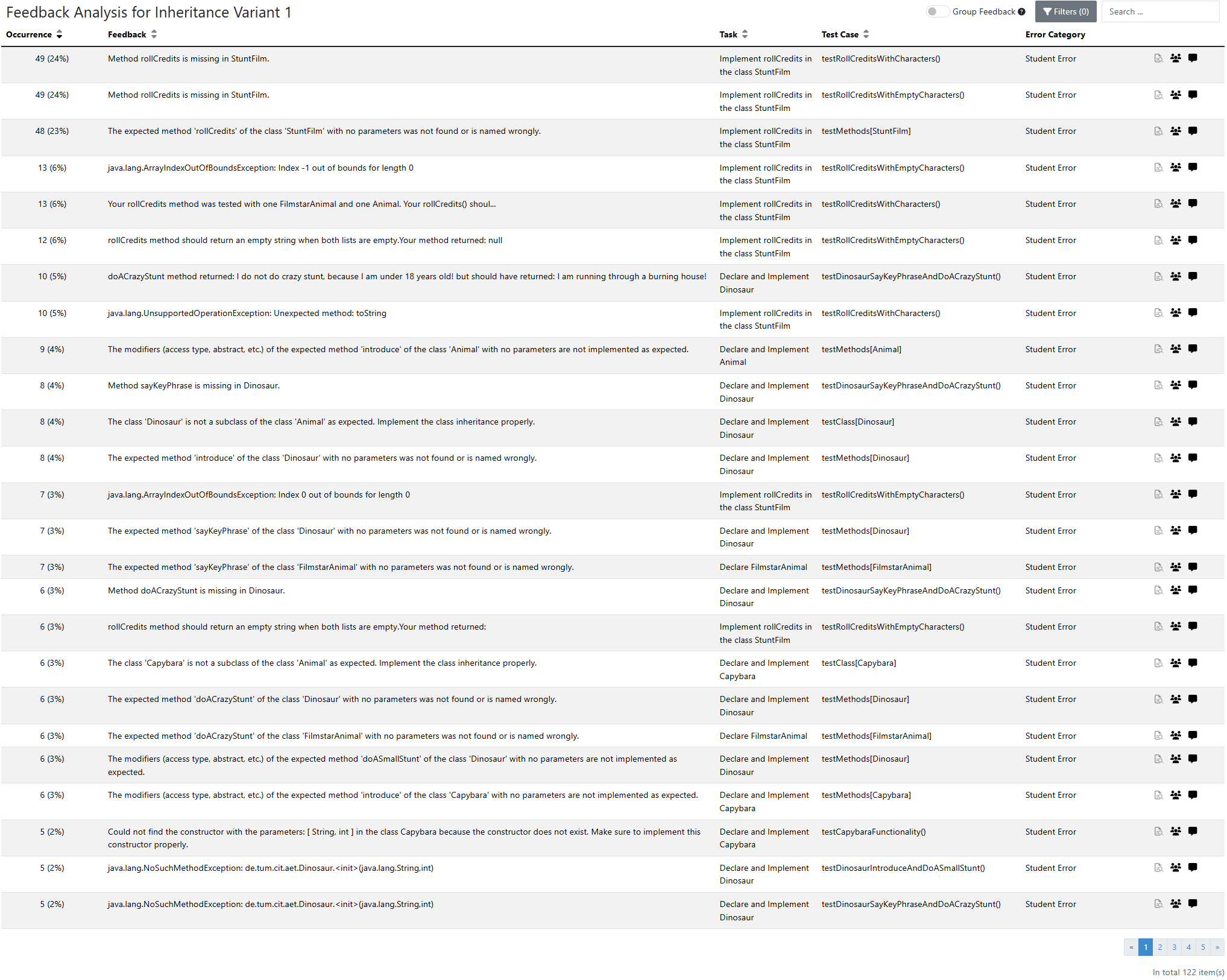
Key Features:
-
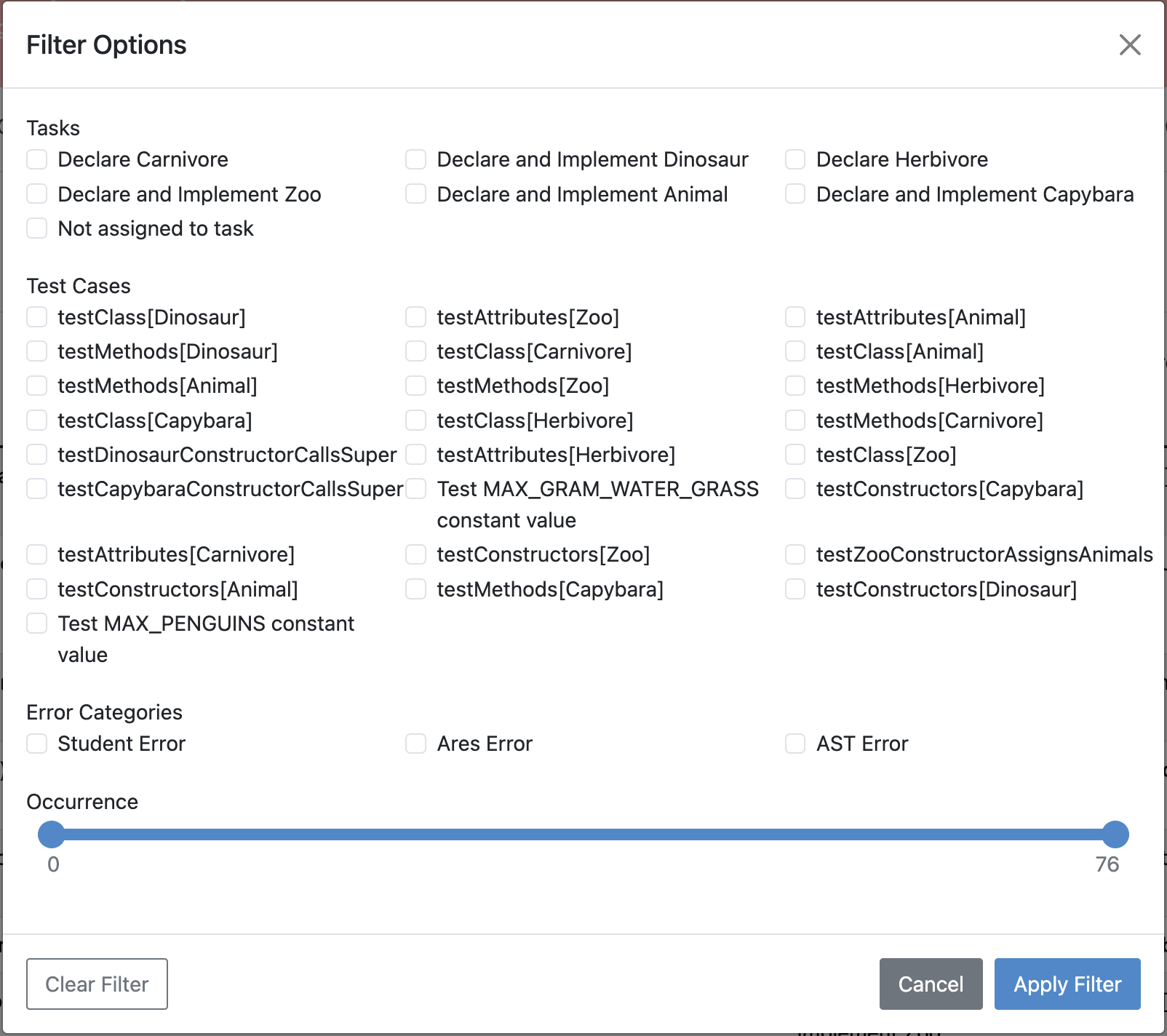
Filtering and Sorting
Filter by tasks, test cases, error categories, and occurrence frequency. Sort based on count or relevance.
Filtering Options -
Affected Students Overview
View students affected by specific feedback and access their repositories for review.
Affected Students View -
Aggregated Feedback
- To avoid many single entries in case of testcases using random values and generating similar feedback, Groups similar feedback messages together all feedback to highlight frequently occurring errors.
- Displays grouped occurrence counts and relative frequencies to help instructors prioritize common issues.
-
Detailed Inspection
Click feedback entries to view full details in a modal window.
Detailed Feedback View -
Communication & Collaboration
Create discussion channels directly from the feedback analysis view for collaborative grading.
Creating a Feedback Discussion Channel


Manual Assessment
You can use the online editor to assess student submissions directly in the browser.

The online editor provides features tailored to assessment:
- File browser: Shows student submission files. Changed files are highlighted in yellow
- Build output: Shows build process output, useful for build errors
- Read-only editor: View student code with changed lines highlighted
- Instructions: Provides structured grading criteria and problem statement, including tasks successfully solved (determined by test cases). Review test cases by clicking the passing test count next to tasks
- Result: Top right corner shows current submission result. Click to review test cases and feedback
Add feedback directly in source code by hovering over a line and clicking Add Feedback. Alternatively, press "+" key when editor is focused to open feedback widget at cursor line.

After clicking Add Feedback:
- Enter feedback comment and score
- Or drag structured assessment criteria from instructions to feedback area
- Click Save to save
- Click Cancel to discard

Add general feedback (not tied to specific file/line) by scrolling to bottom and clicking Add General Feedback.
Save changes with Save (top right). Finalize assessment with Submit Assessment.