After the Exam
Your Summary
Handing in takes you to your summary, and it stays available afterwards — reach it the way you reached the exam, or pick the exam from the course sidebar once it is over.
The summary collects everything you submitted. For a programming exercise it also records the commit hash and the repository address, so you can go back and read your own code. Export PDF saves the whole thing, which is worth doing for your own records.

Results and Complaints
When results are published, your score appears in the same summary.
If you think a manually assessed exercise was marked wrongly, and you are inside the review window your instructor set, Complain lets you say why. A different assessor from the one who marked your work reviews the complaint and answers it, and the answer appears in your summary. A successful complaint updates your result automatically.
Automatically assessed exercises cannot be complained about, unless an assessor has reviewed the automatic result by hand — then that review is open to complaint like any other.

A later Export PDF includes your score, your complaints and the responses to them.
AI Feedback in Test Exams
A test exam is a practice run, so it is the one place in exam mode where you can ask for AI feedback on your answers. Once you have submitted a test exam, its summary offers Request AI Feedback. One request covers all text and modeling exercises of that exam at once, and the results appear in the summary itself a short while later — you do not have to navigate anywhere.
The button shows how many requests you have used out of your limit, and turns into AI Feedback Requested — with a spinner — as soon as Artemis accepts the request, until the feedback is ready.
Example Solutions
If your instructor set a publication date for them, example solutions appear after that date for text, modeling, file upload and programming exercises.

For a programming exercise, Download Example Solution downloads the solution repository.
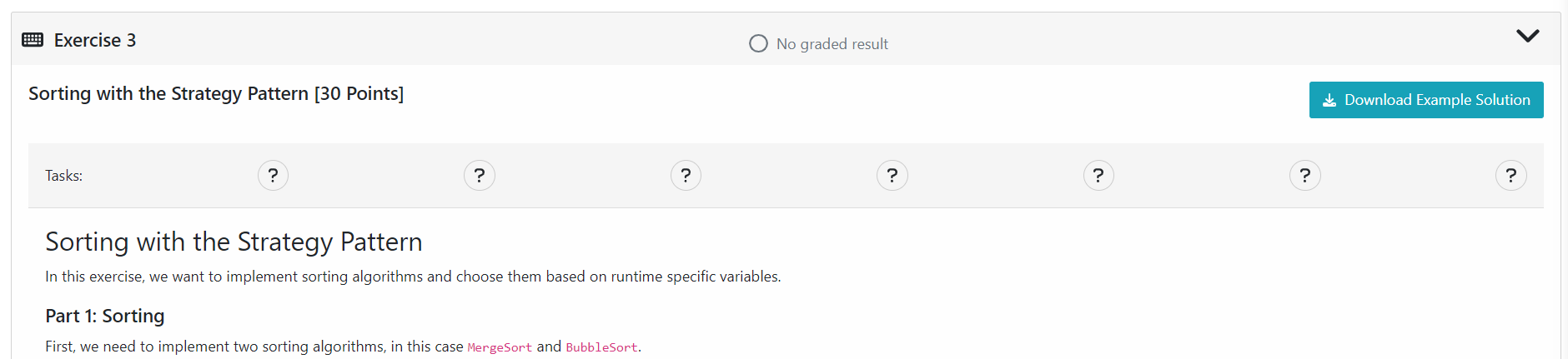
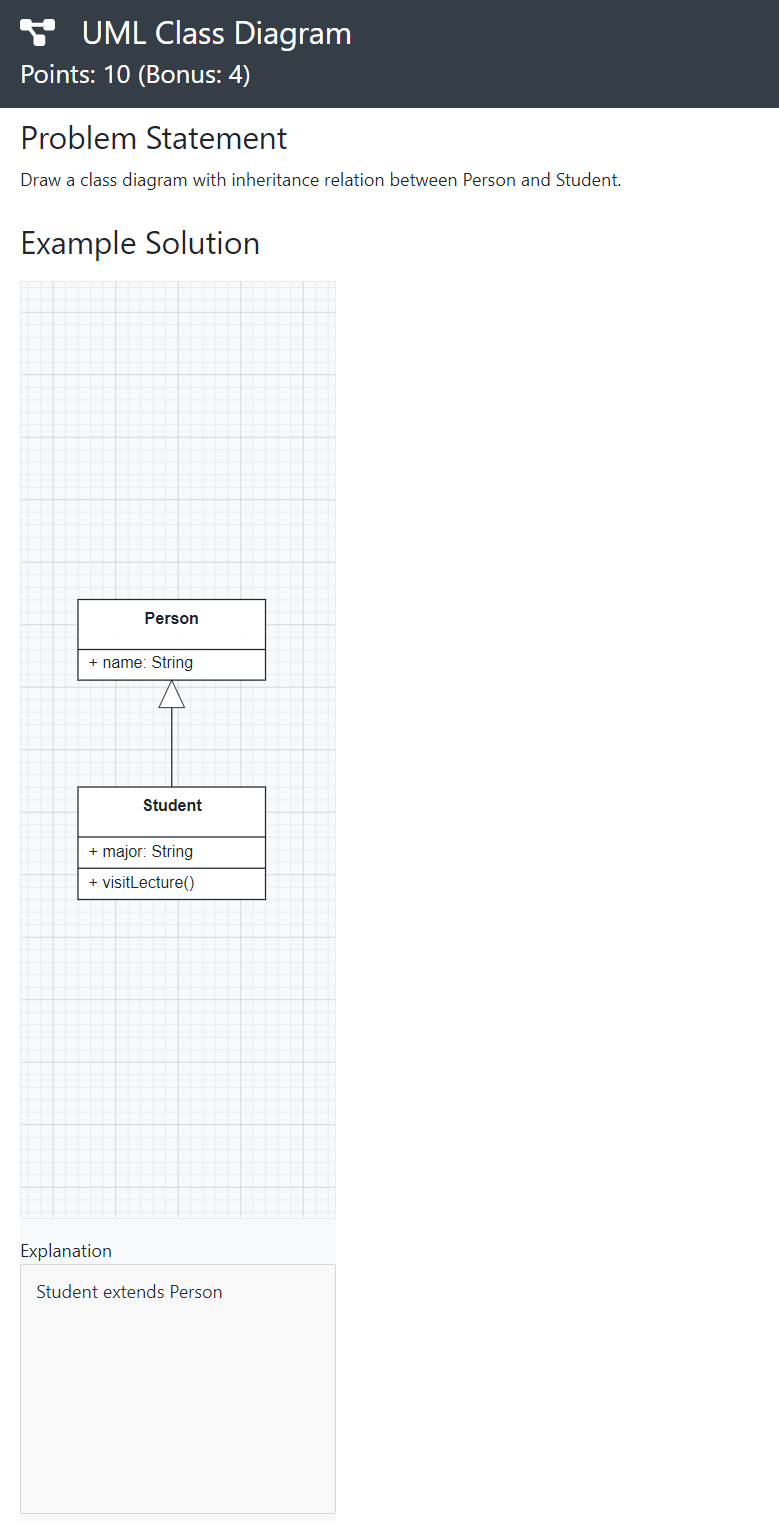
For the other types, Show Example Solution displays it below the exercise.
Grades
Your summary shows the points you achieved and the maximum available for each exercise. If your instructor defined a grading key, it also shows your grade — passing grades in green, failing grades in red.

Where a bonus is configured, your final grade with the bonus applied appears below your grade before the bonus.

Grading Key shows every grade step with its exact boundaries. The brackets say whether a boundary belongs to
the step: a square bracket includes it, a parenthesis excludes it. So a step written [80 - 85) means 80% earns
that grade and 85% earns the next one up.
