AI Feedback on a Draft
Where your instructor has switched it on, you can ask Artemis for feedback on a draft before the due date, without waiting for a tutor to get to it. You can then act on it and submit again.
It is not your mark. The score it shows is provisional, it does not count towards your grade, and a person marks your work afterwards regardless. Artemis says so wherever this feedback appears.
Asking for It
Request AI feedback sits beside the exercise, on the exercise page and inside the editor. Submit your work first, then press it.

The button only appears when three things are true: your instructor has turned the feature on for the course, your administrator has an AI service configured, and the exercise is not part of an exam. If you cannot see it, one of those is missing — there is nothing to switch on at your end.
Which exercises offer it depends on the type:
| Exercise type | Offers AI feedback |
|---|---|
| Text | Yes |
| Modeling | Yes |
| Programming | Only where the exercise is assessed semi-automatically, meaning a person marks it as well as the tests |
| Quiz, file upload | No |
What Comes Back
The request is not instant. Artemis takes a moment, and tells you when the feedback is ready rather than making you watch for it.
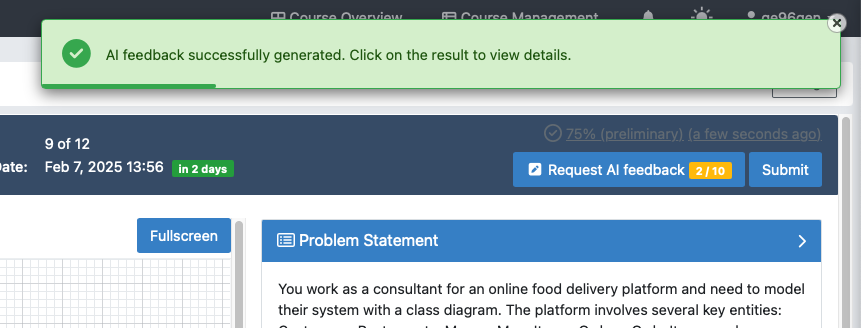
A provisional score appears with your submission.

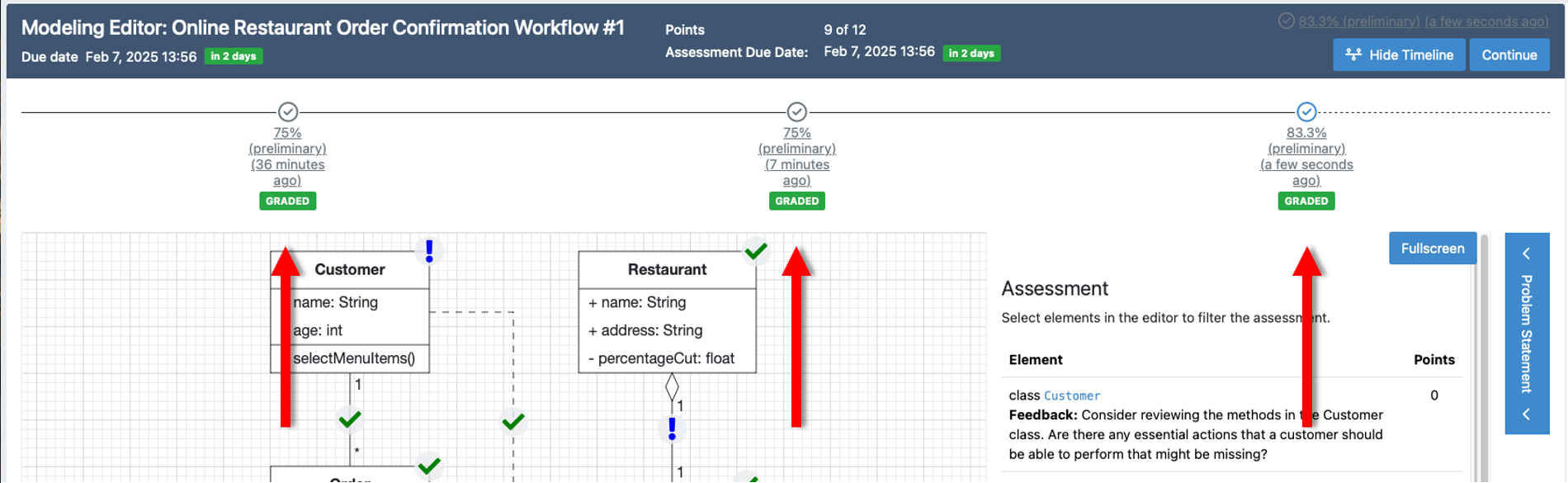
Opening it shows the feedback itself, attached to the parts of your work it is about. On a modeling exercise that means comments on individual elements of the diagram; on a text exercise, on passages of your answer.

Every request is kept, so you can compare what you were told earlier against what you were told after your latest changes.
What You Get and What You Do Not
Ten requests per exercise unless your administrator has set another limit. After that, Request AI feedback stops working for that exercise and Artemis says you have reached the maximum.
One request per submission, on text and modeling exercises. Asking twice for the same submission is refused — change something and submit again first. On a programming exercise the equivalent is a push: the feedback is about the code Artemis has.
Nothing after the due date. The point of this feedback is to act on it while you still can, so the button stops working once the deadline passes.
No empty submissions. There has to be something to give feedback on.
Making It Read the Way You Want
How detailed and how formal this feedback is are yours to set, under User Settings → Learner Profile. An onboarding wizard shows you examples from each end of both scales so the choice is not abstract, and you can change it whenever you like.
See Adaptive Learning for what each setting does.
Related
- Assessment and Feedback — how the mark that counts is produced
- Text Exercises and Modeling Exercises — the exercise types that offer it most fully
- Iris — the AI tutor, which answers questions rather than marking a draft