Mobile Applications
Overview
Artemis provides apps for Android and iOS/iPadOS. Use them to access your courses, read learning material, and communicate with course members. The feature comparison explains the scope of each app, including which activities require the web application.
Select your institution's Artemis server when signing in. The server must run a compatible Artemis version; features also depend on your course's settings and your permissions. The apps use platform-specific interfaces, so the same feature can look different on Android and iOS.
Feature Comparison
These tables were checked on 25 October 2026 against the tagged source versions iOS 3.0.2 and Android 3.1.0, and subsequent development changes. They describe reachable app features, rather than everything supported by the Artemis web application.
| Status | Meaning |
|---|---|
| Yes | Implemented in the tagged app version above, subject to server configuration and permissions. |
| No | Not supported in the app. This is not a roadmap commitment. |
| Web view / external | The app opens web content or another app; the cell explains the scope. |
| Dev | Implemented after the tagged version above. Availability in an app store release is not confirmed by this table. |
Sign-In and Courses
| Feature | iOS | Android |
|---|---|---|
| Select a listed server or enter a custom Artemis URL | Yes | Yes |
| Sign in with username and password | Yes | Yes |
| University single sign-on using SAML2 or OpenID Connect | Yes, using a web sign-in flow | Yes, using a web sign-in flow |
| Sign in with a passkey | Yes | Yes |
| Add, list, and delete passkeys when the server supports them | Yes | Yes |
| Register a new Artemis account in the app | No | Yes, when self-registration is enabled |
| View and search enrolled courses | Yes | Yes |
| Enroll in an available course | Yes | Yes |
| Search course content across exercises, lectures, FAQs, and messages | Yes, when global search is enabled | No |
Account registration is separate from course enrollment. For password recovery, follow your institution's reset-password link or use its Artemis website. Passkeys require support from the server and its domain configuration.
Exercises and Exams
| Feature | iOS | Android |
|---|---|---|
| View exercise lists, details, problem statements, dates, and scores | Yes | Yes; non-quiz problem statements use a web view |
| Participate in live quizzes | Yes | Yes |
| Practice a quiz after it ends, when practice is enabled | Yes | Yes |
| Answer multiple-choice, drag-and-drop, and short-answer quiz questions | Yes | Yes |
| View quiz answers and results in the quiz workflow | Yes | Yes |
| Quiz training and its leaderboard | Yes | No |
| Write and submit a text exercise | No | Yes; starting a team exercise requires the web application |
| Edit and submit a modeling exercise | No | No |
| Edit code, run builds, and submit a programming exercise | No | No |
| Submit a file-upload exercise | No | No |
| View the latest released feedback for programming, text, and file-upload exercises | Web view inside the app | Web view inside the app |
| View the latest released feedback for a modeling exercise | No | Web view inside the app |
| Participate in exams or test exams | No | No |
Viewing an exercise does not mean that you can submit it in the app. Use the web application for activities marked No. Exercise feedback is available only after a result has been released; quiz results use their own quiz screens. Uploading a file to a conversation is separate from submitting a file-upload exercise.
Lectures and Learning Support
| Feature | iOS | Android |
|---|---|---|
| View lectures and their learning units | Yes | Yes |
| Read text learning units | Yes | Yes |
| View PDF lecture attachments and slides | Yes, using the system document preview | Yes, using the PDF viewer |
| Open or export lecture attachments | Yes | Yes |
| Watch video learning units | In-app player for supported video formats; web view for other URLs | External video link |
| Open online learning units | External link | External link |
| Mark learning units as completed | Yes | Yes |
| Read and search accepted FAQs | Yes | Yes |
| Propose an FAQ | Yes, for tutors and instructors | No |
| Chat with Iris about a course or supported exercise/lecture context | Yes, when Iris is enabled and AI use is allowed | No |
| Choose AI usage preferences | Yes, when the server enables Iris | No |
| View upcoming course events in a Home Screen widget | Yes; excludes exams | No |
| Use an in-app calendar, including exam events | No | No |
| View competencies, learning paths, or learning analytics | No | No |
| Enroll in or manage tutorial groups in the app | No | No |
| Take and synchronize lecture notes or diagram annotations | No | No |
| Manage a downloaded course or lecture library for offline study | No | No |
Temporary document downloads and cached message drafts do not provide a synchronized offline course library. The iOS calendar widget is separate from the calendar in the web application.
Communication Features
Both apps support course channels, group conversations, and direct messages. Instructors can disable communication or restrict a course to channels. Posting in an announcement channel, changing membership, moderating messages, and managing channels require the corresponding permissions. These tables describe app support when the action is permitted.
Messages and the Editor
| Feature | iOS | Android |
|---|---|---|
| Read and send messages; reply in threads | Yes | Yes |
| Edit your own messages and replies | Yes | Yes |
| Delete messages and replies when permitted | Yes | Yes |
| Add emoji reactions and see who reacted | Yes | Yes |
| Copy message text | Yes | Yes |
| Use Markdown formatting for bold, italic, underline, strikethrough, lists, quotes, and code | Yes | Yes |
| Edit formatted text directly with an expandable toolbar and a resizable composer | Dev | Dev |
| Mention course members and reference channels, exercises, lectures, and FAQs | Yes | Yes |
| Upload images and files to messages | Yes | Yes |
| Restore locally saved message and reply drafts | Yes | Yes |
| Queue unsent messages for later retry | Yes | Yes |
| Forward a message to another conversation | Yes | Yes |
| Save messages for later | Yes | Yes |
| Pin messages when permitted | Yes | Yes |
| Mark an answer as resolving a question when permitted | Yes | Yes |
The development editor displays supported formatting while you type and lets you drag its handle to change its height. Content that cannot be edited safely is preserved; this does not mean every Markdown construct is supported by the visual editor. On iOS, a slide or lecture-unit reference opens the owning lecture rather than navigating to an exact PDF page.
Finding and Viewing Messages
| Feature | iOS | Android |
|---|---|---|
| Search conversation names | Yes | Yes |
| Search messages within a selected conversation | No; use course-wide message search | Yes |
| Search messages across conversations in the course | Yes | No |
| Filter messages by own posts, unresolved questions, reactions/replies, or pinned status | Yes | Yes |
| Show unread conversation indicators and counts | Yes | Yes |
| Mark all conversations in the course as read | No | Yes |
| Choose ascending or descending message order | No | No |
| Show recipient read receipts | No | No |
| Display images and open uploaded file attachments | Yes | Yes |
| Open an image in a zoomable preview | Yes, from the message's thread/detail view | Yes, in the image viewer |
| Export or share an image | System share sheet | Download and share actions |
| Show preview cards for external web links | No | Yes |
| Open exercise, lecture, FAQ, and conversation references | Yes | Yes |
Unread indicators describe messages you have not read; they do not tell the sender whether recipients have read a message. Attachment export and sharing depend on the system document or image viewer. An image preview is separate from an external web-link preview card.
Conversation Management
| Feature | iOS | Android |
|---|---|---|
| Create direct messages and group conversations | Yes | Yes |
| Browse and join channels | Yes | Yes |
| Filter conversations by unread or recent activity | Yes | Yes |
| Leave a group conversation when permitted | Yes | Yes |
| Leave a channel | Yes, except course-wide channels and channels you created | No |
| Leave a direct message | No; hide it instead | No; hide it instead |
| Create channels when permitted | Yes | Yes |
| View members and open their profiles | Yes | Yes |
| Search the member list | No | Yes |
| Add or remove members when permitted | Yes | Yes |
| Change conversation names, topics, or descriptions when permitted | Yes | Yes |
| Favorite, mute, or hide a conversation | Yes | Yes |
| Archive or delete a channel when permitted | Yes | Yes |
| Grant or revoke channel moderator roles | No | Yes |
Hiding a conversation affects your own list. Archiving a channel is a moderation action that stops new messages for all its members. Course-wide and automatically managed channels have additional restrictions on joining, leaving, and membership changes. For general communication concepts, see Communication.
Notifications and Device Support
| Feature | iOS | Android |
|---|---|---|
| Receive push notifications and open their associated content | Yes | Yes |
| Enable or disable push notifications on the device | Yes | Yes |
| Choose course notification presets and individual push notification types | Yes | Yes |
| View a recent-notification list inside the app | Yes, per course | No; the course bell opens notification settings |
| Configure email notifications in the app | No | No |
| Use the app on a tablet | Yes, iPad layouts | Yes, adaptive layouts |
| Use light and dark appearance | Yes, follows the system | Yes, follows the system |
| View your profile | Yes | Yes |
| Change or delete your profile picture in the app | No | Yes |
| Edit account name, email, or password in the app | No | No |
| App interface language | English | English |
Push notifications require both server registration and permission in the operating system. Use the web application for email notification preferences. The iOS notification list shows recent items; it is not a complete notification archive.
Android Application
Installing the Android App
Install the Android app from Google Play.
Choosing a Server on Android
Select your institution from the server list, or choose Custom instance and enter the same Artemis URL that you use in your browser. The unrestricted app offers TUM, KIT, and codeAbility as presets. Builds restricted to a single institution can omit server switching.

For a custom server, enter its URL in Your instance url, then select Set custom instance once the app can reach the server.

Push Notifications on Android
During the initial notification setup for a server, use Receive push notifications on this device? to opt in or out, then select Continue. Allow notifications in Android's permission prompt if you want to receive them.

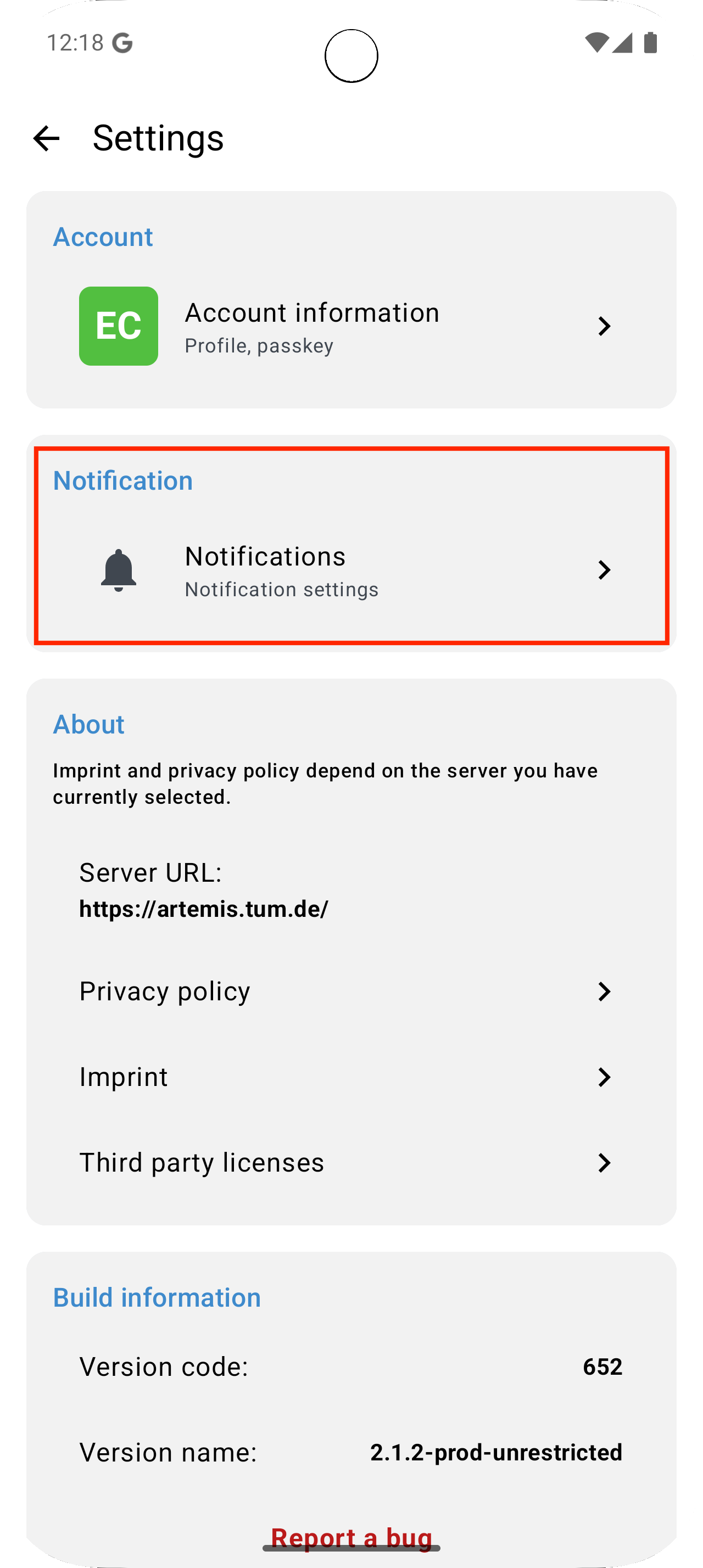
Later, open the app's Settings, then Notifications, to change the device preference. In a course, the bell opens notification presets and individual push notification types; it does not open a notification inbox.
Reporting an Android Problem
Please report any issues on the GitHub repository.
iOS Application
Installing the iOS App
The iOS application is available in the App Store. To test the beta version, install Apple's TestFlight app and follow the link TestFlight.
Choosing a Server on iOS
Tap Select university on the sign-in screen. The list offers TUM, KIT, codeAbility, and Hochschule München, followed by Custom Instance. For a custom server, enter the URL you use in your browser in Your custom Artemis instance URL, then tap Select. The app checks that the URL points to an Artemis server.

Push Notifications on iOS
After signing in, the app asks Receive push notifications on this device? if notification setup is still needed. Choose Register or Skip, and allow notifications in the iOS permission prompt if you want to receive them.
To change a course's push notification preferences, open the course, tap the Notifications bell, then the Settings gear to open Notification Settings. Choose a preset or change the individual notification types. Use iOS Settings to enable or disable notification permission for the app.
Modeling Exercises
Use the web application to create a model, review a modeling submission, and inspect diagram feedback. Neither mobile app currently provides a modeling editor. Android can display the latest released feedback in a web view; iOS requires the web application for modeling feedback.
Reporting an iOS Problem
Please report any issues on the GitHub repository.
Force Update Mechanism
The native apps support a force-update mechanism to ensure compatibility and security, especially when breaking changes are introduced.
The Artemis server provides two configurable version thresholds:
min– the minimum required version. Users must update the app before continuing.recommended– the recommended version. Users are prompted to update, but can continue using the app.

