Communication
Artemis enables students, tutors, and instructors to actively participate with its communication capabilities. Various communication features allow students to engage with peers and ask all kinds of questions whereas moderators (e.g., instructors and tutors) can provide general course information and answer content-related questions. Communication can be made in different contexts, namely for lectures, exercises, or courses. Course participants can also message each other to communicate in private. Below, you can find more information on specific features and how to use them.
Enabling Communication
Artemis courses will by default enable all the communication features.
In case you do not want to provide users with these features, you can disable them on course creation by unchecking the
respective checkbox (Communication Enabled) - it can also be edited afterwards. Additionally, you can enable or disable group chats and direct messages by checking the (Direct Messages Enabled / Group Chats) checkbox.

Features for Tutors
The following features are only available for tutors, not for students.
Tutor Suggestions
Suggestions provided by Iris to support tutors in formulating context-aware replies.
Tutor Suggestions appear in the thread view whenever a tutor opens a discussion post. These suggestions are short, bullet-point messages generated by Iris based on the context of the current discussion, the course content, and linked lecture or exercise materials. Their purpose is to guide tutors toward pedagogically meaningful answers without providing direct solutions. Once Iris completes the analysis, the suggestions appear beneath the message input field. A status bar shows the loading state while the Tutor Suggestions are generated.
Exemplary thread view with tutor suggestions:
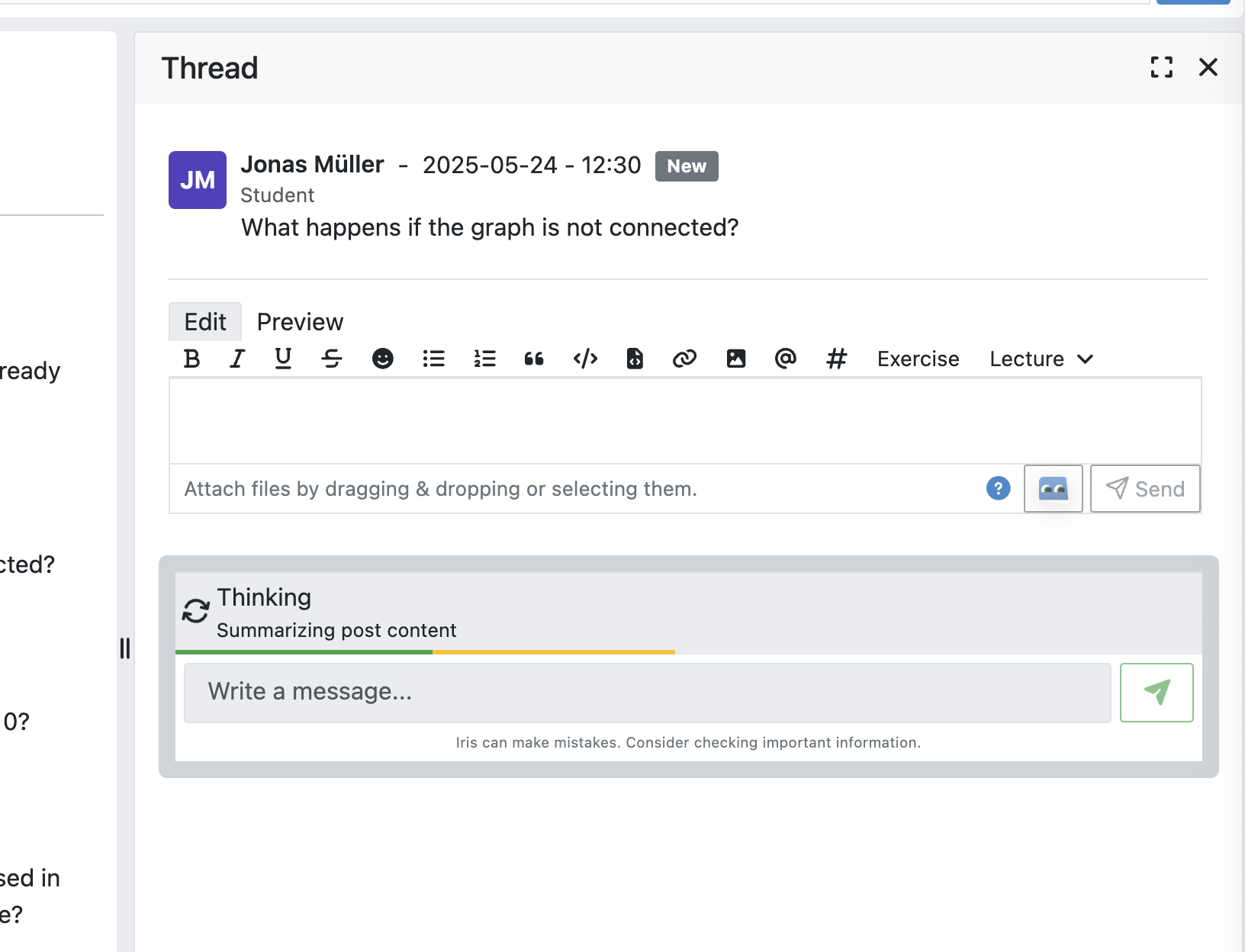
If tutors require more detailed clarification or want to refine the Tutor Suggestions, they can initiate a direct conversation with Iris in the integrated chat window. This chat appears directly below the suggestions in the thread view. Tutors can ask questions such as:
- What part of the example solution relates to this question?
- What misconception might the student have based on their message?
Iris will respond based on available context, such as exercise content, example solutions, and previous messages. The tutor can use these answers to formulate more informed replies.
Example tutor–Iris conversation:

If the tutor's question leads to a refined understanding of the discussion, Iris may automatically regenerate and update the Tutor Suggestions. Additionally, tutors can trigger an automated regeneration. A “View history” button lets them inspect previously generated suggestions. Viewing previous suggestions:

Tutor Suggestions are only available to users with the tutor role. The feature is disabled by default and must be explicitly enabled by the administrators. Students' messages are processed and stored locally within Artemis to generate suggestions. No external services are contacted, and no content is sent to GPT models.
Privacy and activation at a glance
- Local processing: Students' messages are processed locally inside Artemis to create Tutor Suggestions. There is no transfer of personal data to third parties.
- Opt-in: The feature is not active by default and must be explicitly enabled by the administrators.
- No external AI: No content is sent to GPT models or other external AI services.
- GDPR: Processing is purpose-limited to assisting tutors (purpose limitation, data minimisation). If your institution requires consent as the legal basis, activation must be preceded by explicit consent (Art. 6(1)(a) GDPR).
Features for Moderators
The following features are only available for moderators, not for students.
Pin Messages
By using the "Pin message" button, either from the right-click dropdown menu or from the action bar that appears at the top right corner of a message when hovering over it, a moderator can pin the message. As a consequence, the message is highlighted to receive higher attention.
Toggle Channel Privacy
Moderators have the ability to seamlessly toggle a channel’s privacy between private and public using the toggle button in the channel settings.

Features for Instructors
The following feature is only available for instructors that act as moderators.
Creating Course-Wide Channels
When creating a lecture, exercise, or exam, the creator can decide on a channel name as well. The name is automatically generated based on the lecture's/exercise's/exam's title but can be adapted if needed.
The video below provides a demonstration for the creation of a course-wide channel:
Besides automatic creation during lecture, exercise, or exam setup, moderators can also manually create new channels later if needed. When creating a channel, they must choose between a selective channel (default option) and a course-wide channel. In a selective channel, users are added manually after the channel is created. In a course-wide channel, all users enrolled in the course are automatically added as members.

Message Announcements
Instructors can create course-wide messages that serve as Announcements.
They target every course participant and have higher relevance than normal messages.
Announcements can be created in the course messaging overview by selecting the Announcement channel.
As soon as the announcement is created, all participants who did not actively refrain from being notified will receive an email containing the announcement's content.