Modeling Exercise
A modeling exercise asks students to draw: a UML class diagram, an activity diagram, a BPMN process. They work in Artemis's built-in editor, and assessment happens element by element — a mark and a comment attached to the class, the association or the activity it concerns, rather than to the diagram as a whole.
That element-level structure is what lets Artemis reuse assessments. Grade one submission and it can apply the same comments to matching elements in others, so a large cohort costs far less than the number of submissions suggests.
Create the Exercise
Create on the course's Exercises page in course management opens the Manage Exercises dialog. Its Create tab lists the exercise types; picking Modeling opens the creation form.

The form is the same five sections for every exercise type:
- General — the Title, the Channel Name of the communication channel Artemis opens for the exercise, and the Categories it is filed under.
- Mode — the Difficulty, and Participation, which is where an exercise is made a team exercise. Participation cannot be changed once the exercise exists.
- Problem — the Problem Statement students read, with files you can attach to it.
- Solution — the Example Solution, and Diagram Type, which is the field specific to this exercise type.
- Grading — the dates and the value. Release Date makes the exercise visible, Start Date lets students begin, Due Date stops them working, Assessment Due Date publishes the feedback, and Example Solution Publication Date releases the solution; leave that last one empty and the solution stays with the tutors. Points and Bonus Points set the value, Include this exercise in the course score calculation takes Yes, Bonus or No, and Assessment Instructions are the rubric assessors work from.


Assessment help is not switched on here. It follows the course: with grading feedback suggestions enabled there, Athena proposes assessments for this exercise from ones already given in it — see AI-Assisted Feedback.
Train the Assessment
Saving the exercise opens Example Submissions for Assessment Training. This is where the reuse of assessments comes from: the submissions you grade here become the reference Artemis matches other submissions against.

Create Example Submission draws one from scratch. Once the exercise has run, Use as Example Submission promotes a real student submission instead, which is usually the better reference because it contains the mistakes students actually make.
Every example submission carries an Assessment Training mode, set in the example submission editor. Read and Confirm shows the tutor the worked assessment and the explanation behind it, and asks them to confirm they have understood it. Assess Correctly hides the assessment and asks the tutor to produce it themselves, then tells them where they differ. Use the first for an example that teaches a principle and the second for one that catches a mistake assessors make.

Import an Existing Exercise
The Import tab of the Manage Exercises dialog copies an exercise you already have. Pick the type, then the exercise, and Artemis opens the creation form with its fields filled in, ready to adjust.

Manage the Exercise
The exercise appears on the course's exercise list, where each row offers the same set of actions: Participations lists who took part, Scores shows what they achieved, Example Submissions manages the submissions assessors train on, Edit reopens the form and Delete removes it. Whatever does not fit on a narrow window moves behind the row's overflow menu. The title opens the exercise itself.

Assess Submissions
Assessment opens once the due date has passed. Assessment in the course navigation lists the exercises waiting to be marked; opening the modeling exercise there shows its own queue.

Assess on an entry opens that submission. Double-click an element of the diagram to give it points and feedback; the dialog also steps through the other assessable elements, so a diagram can be worked through without returning to the canvas each time.

Dragging an assessment instruction from the Assessment Instructions panel onto an element applies its points and feedback in one go, which is what keeps several assessors marking the same way.

Add new feedback attaches feedback to the submission as a whole rather than to one element.

When you are done, Submit publishes the assessment, Save keeps it to finish later, Cancel discards it and releases the lock so somebody else can take the submission, and Exercise Dashboard returns to the queue.
Automatic Assessment Suggestions
Where the course has Grading feedback suggestions switched on in its Athena AI Feedback panel, Artemis generates assessment suggestions for modeling submissions using the Athena service.
Opening Assess on one of the entries loads the suggestions for that submission, which takes a moment:

Once assessment suggestions have been retrieved, a notice on top of the page indicates that the current submission contains assessment suggestions created via generative AI.

The suggestions themselves are shown as follows. If a suggestion directly references a diagram element, a dialog showing the suggested grading score for this specific suggestion as well as a suggestion on what could be improved is attached to the corresponding element. In this example, a remark is made that an element is present in the evaluated BPMN diagram without being mentioned in the problem statement.

If a suggestion addresses a more general aspect of the diagram, multiple diagram elements at once, or elements that are missing from the diagram, the suggestion is shown in a card overview below the diagram. These unreferenced suggestions can be accepted or discarded via buttons on the individual suggestion cards.

How Suggestion Generation Works
This section provides insights into how automated feedback suggestions are generated for modeling exercises using Athena. The module uses a Large Language Model (LLM) internally to generate feedback through the following process:
-
Feedback Request Reception: Upon receiving a feedback request, the corresponding modeling submission is serialized into an appropriate exchange format depending on the diagram type. For BPMN diagrams, BPMN 2.0 XML is used as it is a commonly used exchange format for process models and proved to be well-understood by LLMs. IDs of diagram elements are shortened during serialization to minimize the token count of the input provided to the language model.
-
Prompt Input Collection: The module gathers all required input to query the connected language model. This includes:
- Number of points and bonus points achievable
- Grading instructions
- Problem statement
- Explanation of the submission format
- Optional example solution
- Serialized submission
-
Prompt Template Filling: The collected input is used to fill in the prompt template. If the prompt exceeds the language model's token limit, omittable features are removed in the following order: example solution, grading instructions, and problem statement. The system can still provide improvement suggestions without detailed grading instructions.
-
Token Limit Check: Feedback generation is aborted if the prompt is still too long after removing omittable features. Otherwise, the prompt is executed on the connected language model.
-
Response Parsing: The model's response is parsed into a dictionary representation. Feedback items are mapped back to their original element IDs, ensuring that the feedback suggestions can be attached to referenced elements in the original diagram.
Optimizing Exercises for Automated Assessment
A few best practices should be considered to get the best possible assessment suggestions for a modeling exercise. As the current version of the module for generating suggestions for modeling exercises is based on a large language model, when composing grading instructions for an exercise, it is advisable to follow similar strategies as for prompt engineering an LLM.
One of the strategies for optimizing the prompt results of an LLM is instructing the model as clearly as possible about the expected output of the task at hand. The following example shows grading instructions for an exemplary BPMN process modeling exercise optimized for automatic assessment. The instructions explicitly list all aspects Athena should assess and how credits should be assigned accordingly, ensuring consistent suggestions across all submissions.
Example: Optimized Grading Instructions for BPMN Exercises
Evaluate the following 10 criteria:

1. Give 1 point if all elements described in the problem statement are present in the submission, 0 otherwise.
2. Give 1 point if the outgoing flows from an exclusive gateway are also labeled if there is more than one outgoing flow from the exclusive gateway, 0 otherwise.
3. Give 1 point if a start-event is present in the student's submission, 0 otherwise.
4. Give 1 point if an end-event is present in the student's submission, 0 otherwise.
5. Give 0 points if the activities in the diagram are not in the correct order according to the problem statement, 1 otherwise.
6. Give 1 point if all pools and swimlanes are labeled, 0 otherwise.
7. Give 1 point if the submission does not contain elements that are not described in the problem statement, 0 otherwise.
8. Give 1 point if all diagram elements are connected, 0 otherwise.
9. Give 1 point if all tasks are named in the "Verb Object"-format where a name consists of a verb followed by the object, 0 otherwise.
10. Give 1 point if no sequence flows connect elements in two different pools, 0 otherwise.
Automatic Student Feedback
Overview:
When a modeling exercise is configured to allow Allow automatic AI preliminary feedback requests, preliminary AI feedback can be requested for modeling submissions. The feedback is generated through the Athena Service, which analyzes both the structure and layout of the diagrams and produces feedback based on the provided Grading Instructions, Problem Statement, and Sample Solution.
How to Request Automatic Feedback:
-
Requesting Feedback
- 1.1. Navigate to a Modeling Exercise with the Automatic Student Feedback feature enabled
- 1.2. Create a diagram in the modeling editor and submit it
- 1.3. Feedback may be requested either from the exercise overview page or directly within the modeling editor
Request Feedback Button in Exercise Overview and Modeling Editor -
Viewing Feedback
- 2.1. After a feedback request is made, the system processes the diagram and generates preliminary feedback
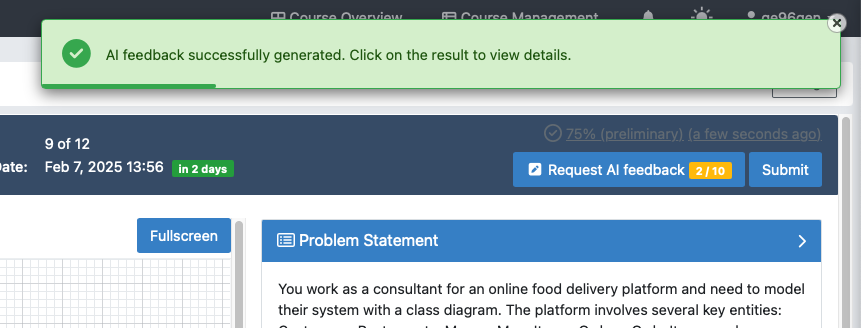
- 2.2. An alert appears at the top of the page to indicate that the feedback is ready
Notification Alert When AI Feedback is Ready - 2.3. A preliminary score is displayed in the top-right corner of the screen
Preliminary Score in Modeling Editor - 2.4. Clicking on the score reveals detailed, inline feedback that highlights specific issues and provides suggestions directly within the diagram
Detailed AI Feedback -
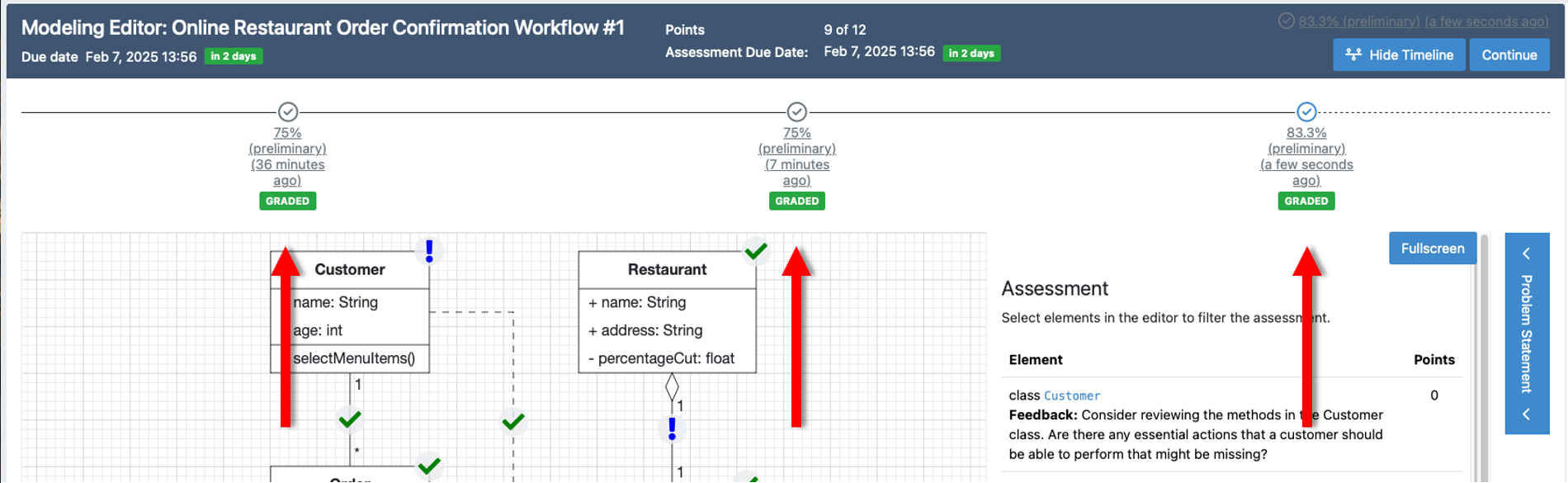
Submission History
- Feedback can be requested multiple times before the submission due date. All feedback requests are recorded in the submission history
- To review previous feedback, access the submission history section and click on an entry to display its detailed feedback
Submission History Section in Modeling Editor



Demo
A demonstration of the automated generation of student feedback for a class diagram:
What Students See
Students start the exercise, draw their answer in the editor beside the task and submit it — see Modeling Exercise on the student pages.