Communication
Artemis enables students, tutors, and instructors to actively participate with its communication capabilities. Various communication features allow students to engage with peers and ask all kinds of questions whereas moderators (e.g., instructors and tutors) can provide general course information and answer content-related questions. Communication can be made in different contexts, namely for lectures, exercises, or courses. Course participants can also message each other to communicate in private. Below, you can find more information on specific features and how to use them.
Course-Wide Messages
Artemis automatically creates course-wide channels for course-wide topics, such as
Organization or Tech Support, and various elements of a course, namely lectures, exercises, and exams. Messages can be written within these channels on the course messaging overview, which is shown in the screenshot below.

This video provides an overview of the course-wide channel types existing in a course:
Lecture Messages
Messages that are specifically related to a certain lecture.
These messages can also be created on the detail page of the lecture they belong to.
Exemplary lecture detail page with messages:

Exercise Messages
Messages that are specifically related to a certain exercise.
These messages can also be created on the detail page of the exercise they belong to.
Exemplary exercise detail page with messages:

Private Communication
Users of a course can communicate in private via the Messages page. (see image below) The page consists of a collapsible Conversation sidebar on the left, where users can search for other participants of the current course and start a conversation with them. Private communication is only available if the course instructor enables this feature.
If the recipient is browsing another conversation when they receive a new message, an icon with an unread-messages counter is displayed in their conversation sidebar, next to the affiliated conversation that the new message was sent to. This way, users become aware of the new message within that discussion.
The authorities of tutors and instructors are more restricted in the Messages Page compared to the Course Communication Overview. Messages of a conversation are exclusive to its participants and are only editable or deletable by their respective author.
Messages do not consist of titles. Users can continue a discussion around a specific message topic by clicking the messages’ “Reply in thread” button, which opens the Thread sidebar (see image below). The Thread sidebar is a collapsible sidebar located on the right-hand side of the Messages Page when displayed.

This video shows how link previews work in Artemis:
If the message content contains links, a preview of the link will be shown under the message. This way, users will have a good understanding
of what that link is about. If they prefer not to have a preview, they can hover over the preview and click the appearing X button.
The preview will be removed.

Communication Features Availability
The following table represents the currently available communication features of Artemis on the different platforms. Note that not all features are available to every user, which is why Actor restrictions have been added. The following sections will explore this in more detail.
Status explained
| Status | Meaning |
|---|---|
| AVAILABLE | This feature has been released to production. |
| UNAVAILABLE | This feature is currently not available and not planned yet. |
| PLANNED | This feature is planned and implemented within the next 2-4 months. |
| WIP | This feature is currently being worked on and will be released soon. |
| NOT PLANNED | This feature will not be implemented due to platform restrictions, or it does not make sense to implement it. |
Available features on each platform
| Feature | Actor Restrictions | Web App | iOS | Android |
|---|---|---|---|---|
| General | ||||
| Send Messages | AVAILABLE | AVAILABLE | AVAILABLE | |
| Receive Messages | AVAILABLE | AVAILABLE | AVAILABLE | |
| Post Actions | ||||
| React to Messages | AVAILABLE | AVAILABLE | AVAILABLE | |
| Reply in Thread | AVAILABLE | AVAILABLE | AVAILABLE | |
| See who reacted to a post | AVAILABLE | AVAILABLE | AVAILABLE | |
| Copy Text | NOT PLANNED | AVAILABLE | AVAILABLE | |
| Pin Messages | Groups: group creators Channels: moderators DM: members of DM | AVAILABLE | AVAILABLE | AVAILABLE |
| Delete Message | Moderators and authors | AVAILABLE | AVAILABLE | AVAILABLE |
| Edit Message | Authors only | AVAILABLE | AVAILABLE | AVAILABLE |
| Save Message for later | AVAILABLE | AVAILABLE | AVAILABLE | |
| Forward Messages | AVAILABLE | AVAILABLE | AVAILABLE | |
| Resolve Messages | At least tutor and authors | AVAILABLE | AVAILABLE | AVAILABLE |
| Post action bar (thread view) | NOT PLANNED | AVAILABLE | AVAILABLE | |
| Get tutor suggestion (thread view) | At least tutor | AVAILABLE | UNAVAILABLE | UNAVAILABLE |
| Markdown Text field Options | ||||
| Tag other users | AVAILABLE | AVAILABLE | AVAILABLE | |
| Reference channels, lectures and exercises | AVAILABLE | AVAILABLE | AVAILABLE | |
| Tag FAQ | AVAILABLE | AVAILABLE | AVAILABLE | |
| Basic formatting (underline, bold, italic) | AVAILABLE | AVAILABLE | AVAILABLE | |
| Strikethrough formatting | AVAILABLE | AVAILABLE | AVAILABLE | |
| Preview | AVAILABLE | UNAVAILABLE | AVAILABLE | |
| Code Block and inline code formatting | AVAILABLE | AVAILABLE | AVAILABLE | |
| Reference formatting | AVAILABLE | AVAILABLE | AVAILABLE | |
| Link formatting | AVAILABLE | AVAILABLE | PLANNED | |
| Messages | ||||
| Profile pictures | AVAILABLE | AVAILABLE | AVAILABLE | |
| Show if message was edited, resolved or pinned | AVAILABLE | AVAILABLE | AVAILABLE | |
| Render links to exercises, lectures, other chats, lecture-units, slides, lecture-attachment with correct icon | AVAILABLE | AVAILABLE | AVAILABLE | |
| Render FAQ links | AVAILABLE | AVAILABLE | AVAILABLE | |
| Mark unread messages | UNAVAILABLE | UNAVAILABLE | UNAVAILABLE | |
| Render images | AVAILABLE | AVAILABLE | AVAILABLE | |
| Show link previews | AVAILABLE | UNAVAILABLE | AVAILABLE | |
| Render links to uploaded files | AVAILABLE | AVAILABLE | AVAILABLE | |
| Filter messages (unresolved, own, reacted) | AVAILABLE | AVAILABLE | AVAILABLE | |
| Sort messages (ascending, descending) | AVAILABLE | NOT PLANNED | NOT PLANNED | |
| Search for messages in a specific chat | AVAILABLE | UNAVAILABLE | AVAILABLE | |
| Search for messages across all chats | AVAILABLE | PLANNED | UNAVAILABLE | |
| Apply filters while searching across all chats | AVAILABLE | PLANNED | UNAVAILABLE | |
| Open Profile info by clicking profile picture | PLANNED | AVAILABLE | AVAILABLE | |
| Start a conversation from Profile | AVAILABLE | AVAILABLE | AVAILABLE | |
| Draft messages | AVAILABLE | AVAILABLE | AVAILABLE | |
| Link/Attachment Handling | ||||
| Open lecture, exercise, chat links correctly in the appropriate view | AVAILABLE | AVAILABLE | AVAILABLE | |
| Open sent images full-screen | AVAILABLE | AVAILABLE | PLANNED | |
| Download sent images | AVAILABLE | AVAILABLE | UNAVAILABLE | |
| View and download attachments | AVAILABLE | AVAILABLE | AVAILABLE | |
| Conversation Management | ||||
| Search for chats | AVAILABLE | AVAILABLE | AVAILABLE | |
| Filter chats (all, unread, favorites) | UNAVAILABLE | AVAILABLE | AVAILABLE | |
| Mark unread chats | AVAILABLE | AVAILABLE | AVAILABLE | |
| Mute, hide, favorite chat | AVAILABLE | AVAILABLE | AVAILABLE | |
| Edit Chat information (name, topic, description) | AVAILABLE | AVAILABLE | AVAILABLE | |
| Archive Chat | AVAILABLE | AVAILABLE | AVAILABLE | |
| Delete Chat | AVAILABLE | AVAILABLE | PLANNED | |
| View Members | AVAILABLE | AVAILABLE | AVAILABLE | |
| Search Members | AVAILABLE | UNAVAILABLE | AVAILABLE | |
| Filter Members (All Members, Instructors, Tutors, Students, Moderators) | AVAILABLE | UNAVAILABLE | UNAVAILABLE | |
| Add Members to existing chat | Group: members of group Channel: at least instructor or moderator DM: not possible | AVAILABLE | AVAILABLE | AVAILABLE |
| Filter Members while adding (Students, Tutors, Instructors) | AVAILABLE | UNAVAILABLE | AVAILABLE | |
| Add whole groups (All Students, All Tutors, All Instructors) | AVAILABLE | PLANNED | UNAVAILABLE | |
| Grant moderator roles in channels / revoke moderation roles | Moderators only | AVAILABLE | UNAVAILABLE | AVAILABLE |
| Create direct chat | Everyone | AVAILABLE | AVAILABLE | AVAILABLE |
| Create channel (public/private, announcement/unrestricted) | At least teaching assistant | AVAILABLE | AVAILABLE | AVAILABLE |
| Update channel information (name, topic, description) | Moderators | AVAILABLE | AVAILABLE | AVAILABLE |
| Create group chat | Everyone | AVAILABLE | AVAILABLE | AVAILABLE |
| Remove users from group chat | Members of group chat | AVAILABLE | AVAILABLE | AVAILABLE |
| Browse channels | AVAILABLE | AVAILABLE | AVAILABLE | |
| Show info in chat overview (created by, created on) | AVAILABLE | AVAILABLE | AVAILABLE | |
| Leave chat | For groups only | AVAILABLE | AVAILABLE | AVAILABLE |
| Delete channel | Creators with moderation rights and instructors | AVAILABLE | AVAILABLE | AVAILABLE |
| Archive channel | Moderators | AVAILABLE | AVAILABLE | AVAILABLE |
| Notifications | ||||
| Notification overview for past course specific notifications | AVAILABLE | AVAILABLE | UNAVAILABLE | |
| Notification settings (unsubscribe/subscribe to various course specific notification types) | AVAILABLE | AVAILABLE | AVAILABLE |
Note
- Leave chat option is available on the web app for groups only, on iOS for groups and non course-wide channels, and on Android for channels, groups, and DMs.
- Creating a group chat on iOS and Android can be achieved via the 'Create Chat' option. It becomes a group when more than one user is added.
- Starting a conversation on the web app from a profile is available when clicking on the user's name in the chat.
- Downloading sent images in the chat is only available through the browser option on the web app.
- Seeing who reacted to a post is available when hovering over a reaction on the web app.
Features for Users
This section captures the most important features that are offered to any Artemis user.
Search, Filter, and Sort Messages
Global Search
In the course communication, users can search for messages across all channels and conversations. The global search can be accessed anytime. To only receive results from a a specific conversation or a specific author, filters can be applied by using the keywords in: or from: or by selecting the respective filters from the dropdown menu. When accessing the global search from a conversation by clicking on the search icon in the top right corner, this conversation is automatically selected as filter.

On the course communication overview, a user can query all existing messages according to the following criteria and their possible combinations:
- Text-based Search using the Global Search
- Contents of Announcement-Message Title
- Contents of Message Context
- Message Characteristics
- Unresolved Messages
- Own (messages current user has authored)
- Reacted (messages current user has reacted or replied to)
- Sorting Configurations (ASC/DESC)
- Creation Date
A simplified version of this feature is available on the exercise and lecture details page as well.
Filter Pinned Messages within a Conversation
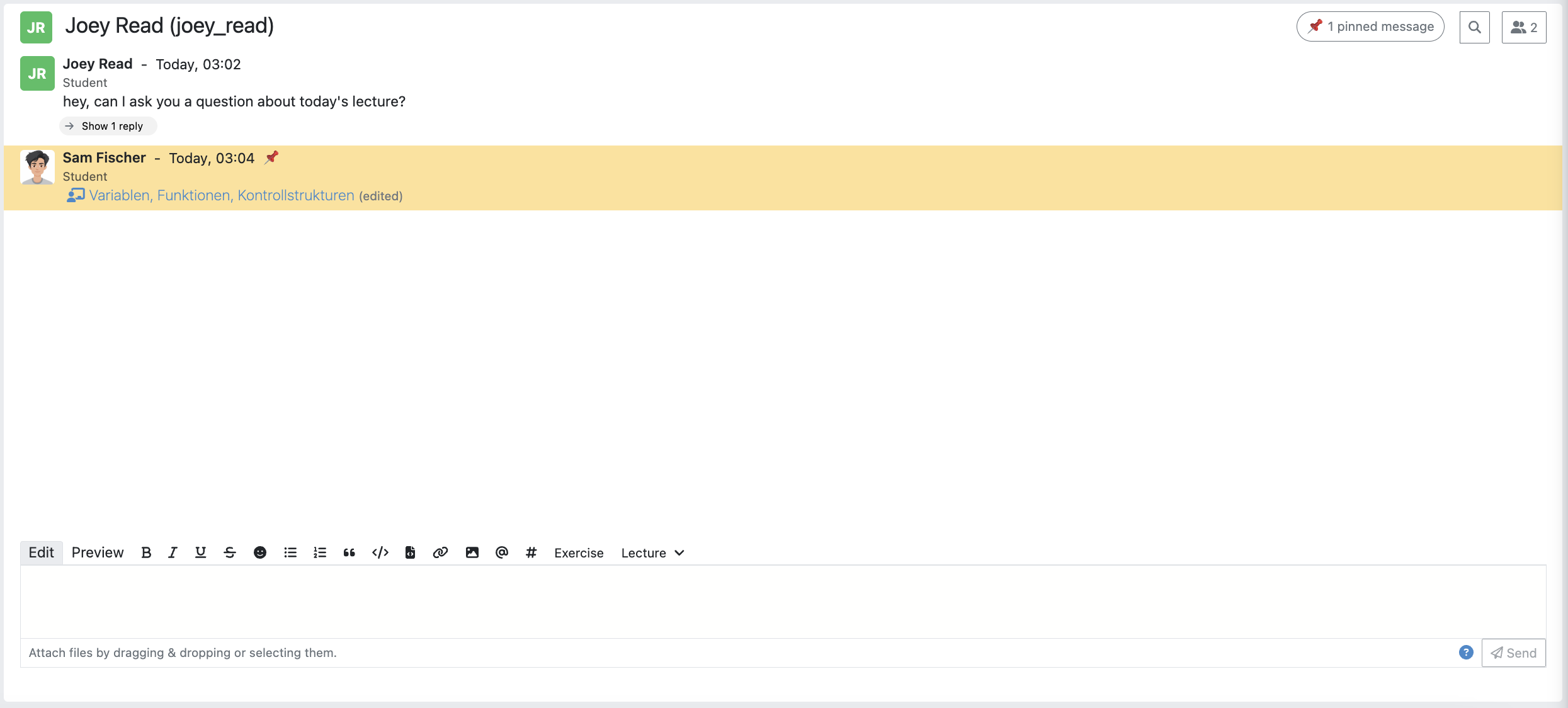
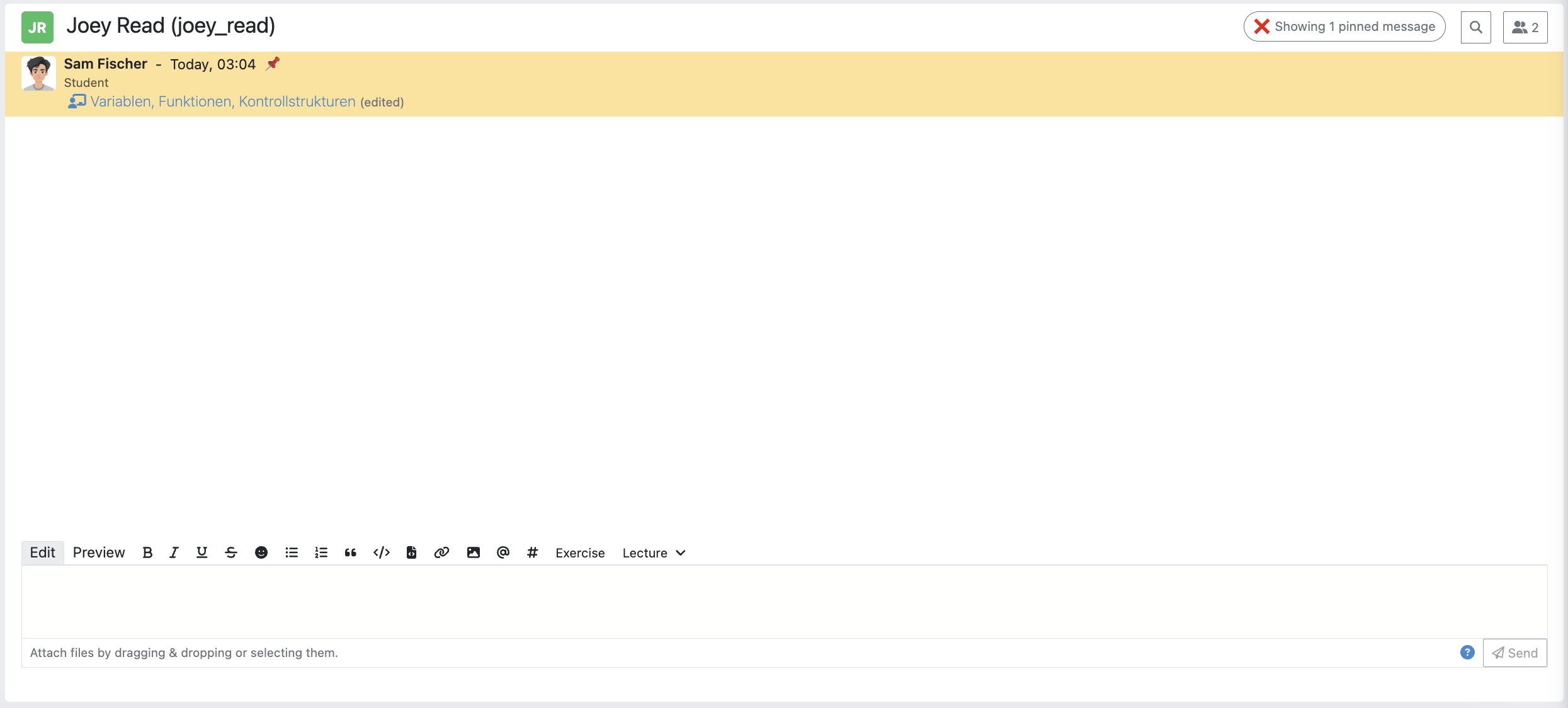
If there are any pinned messages in a conversation, a button labeled "x pinned messages", where x is the number of pinned messages, appears at the top right of the conversation view. By clicking this button, users can filter and view only the pinned messages within that conversation. Clicking the button again returns the view to the regular conversation.
Pinned Messages Button
Applied Pinned Messages Filtering
Verify User Authority
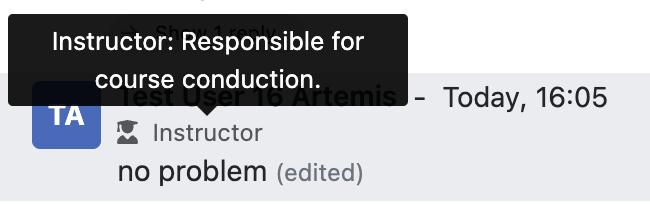
To build trust between users utilizing the system's communication features, we display the user's role below their name in the headers of messages and their replies. When hovering over the displayed role, a tooltip appears showing a brief explanation of that specific role. This way, the system builds trust in the author, and readers can tangibly confirm the origin of the shared information.
Instructor Authority
Tutor Authority

Student Authority

React on Messages
To foster interaction between users, we integrate the well-known emoji reaction bar. Each user in the course can react on any message by making use of the emoji selection button. The ➕ emoji serves as the up-voting reaction, which influences the display order of messages.
Reference Course Entities
Users can reference to different course entities within their messages, such as other messages, course exercises, course lectures, and attachments of these lectures. All references are then prepended with icons which are unique to the reference's type, to help users distinguish them conveniently. In the image below, we see all possible types of references that can be created in an Artemis message.

Reference Course Exercises
Users can refer to exercises of the current course, via the dropdown menu Exercise available on the posting markdown
editor (see image above). The following types of exercises are prepended unique icons to help distinguish the type of the
exercise being referenced.
- Text Exercise
- Quiz Exercise
- Modeling Exercise
- File Upload Exercise
- Programming Exercise
Reference Course Lectures
Users can refer to lectures of the current course, via the dropdown menu Lecture available on the posting markdown
editor (see image above).
Reference Lecture Attachments
Users can refer to lectures of the current course, via the dropdown menu Lecture available on the posting markdown
editor (see image above). Here, lecture attachments can be found in a nested structure.
Reference Lecture Attachment Units
Users can refer to lecture attachment units of the current course, via the dropdown menu Lecture available on the posting markdown
editor, see image below. Here, lecture attachment units can be found when users hover over the specific lecture.
Reference Lecture Unit Slides
This video describes how lecture slides can be referenced:
Users can refer to lecture unit slides of the current course, via the dropdown menu Lecture. Here, slides can be found when users
hover over a specific unit, see image below.

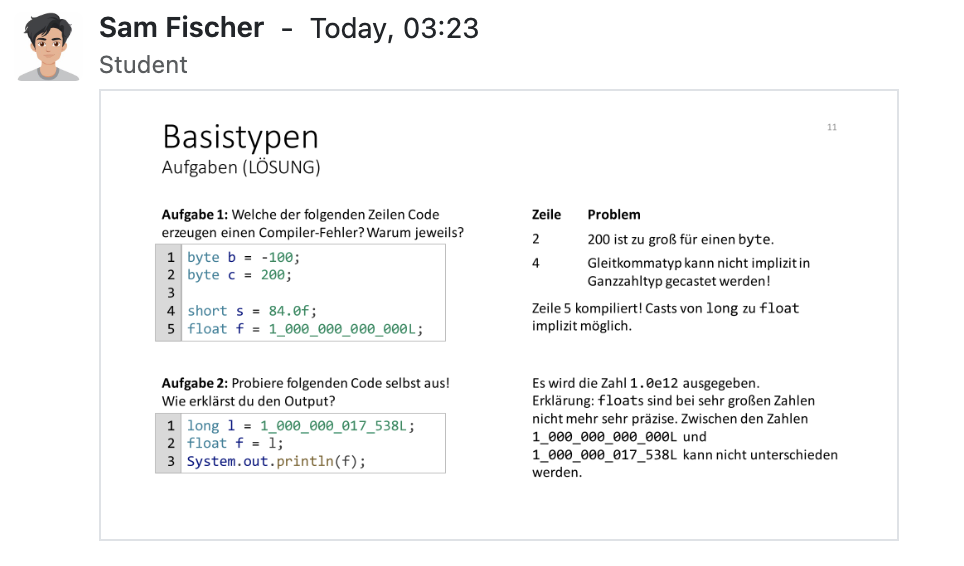
After the user references a single slide they can see it as an image included in the message. Additionally, they can preview the slide in order to easily read the content by clicking the image.

Reference other course members
Users can mention other course members within a message, by either typing an @ character or clicking the @ button available on the posting markdown editor. By typing in the name of a user to mention, the author of the message can search for a certain user they want to mention as demonstrated in the video below.
Reference channels
Similar to course members, users can reference public and course-wide channels of a course by either typing an # character or clicking the # button available on the posting markdown editor.
Mark Your Message As Resolved
Marking a message as resolved will indicate to other users that the posted question is resolved and does not need any further input. This can be done by clicking the check mark next to the answer message. (see image below) Note that only the author of the message as well as a moderator can perform this action. This is helpful for moderators to identify open questions, e.g., by applying the according filter in the course overview. It also highlights the correct answer for other students that have a similar problem and search for a suitable solution.

Forward Messages
Users can forward any message to another conversation within the same course. In the forward message dialog, they can add additional content using the input field. At the top of the dialog, users can search for channels or users by typing into the input bar and selecting from the auto-suggestions. They can select multiple conversations at once to forward the message to several destinations simultaneously. On the forwarded message view, users can navigate to the exact location of the original message by clicking the View Conversation button.
Forward Message Dialog

Forwarded Message View

Save Messages
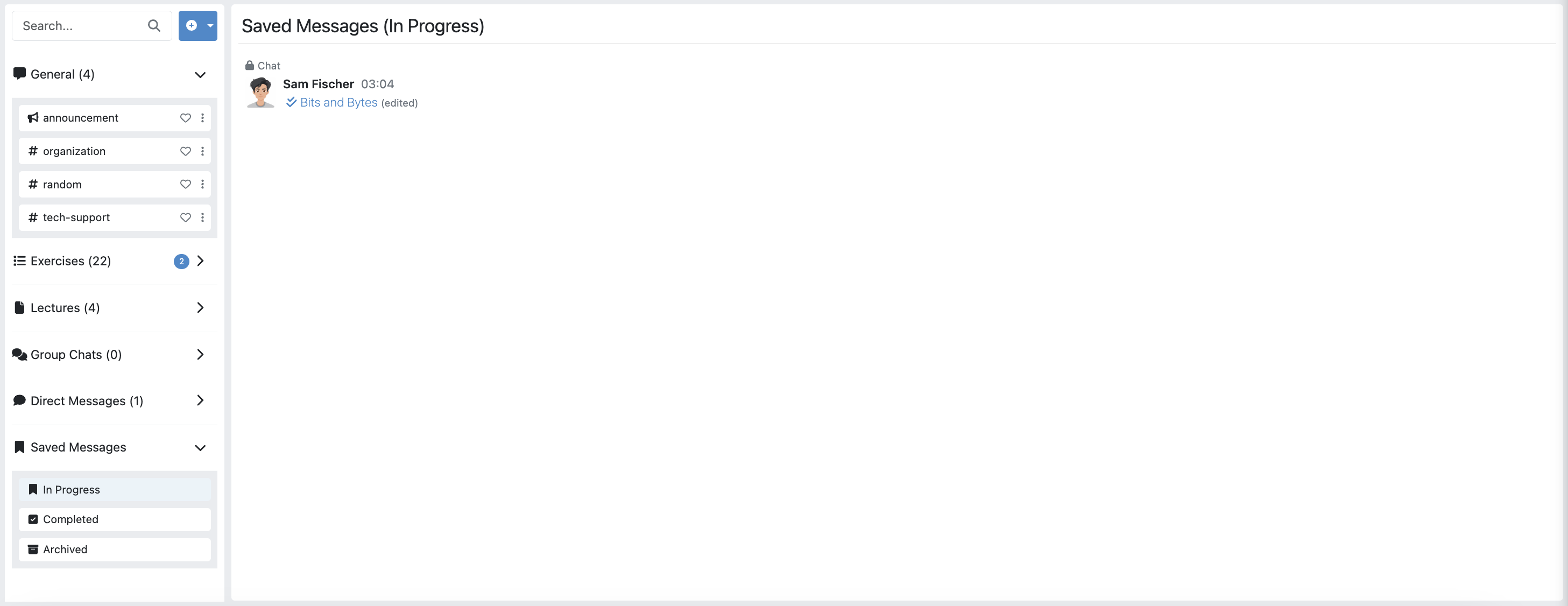
Users can save messages and access them later from the Saved Messages section in the sidebar. Saved messages are organized into three categories: In Progress, Completed, and Archived. Messages initially appear in the In Progress section and can be marked as done to move them to Completed, or archived to move them to the Archived section. Clicking on a saved message navigates the user directly to its exact location within the conversation.
Expand Thread to Full-Screen
Users can expand a thread to cover the entire conversation view by clicking the expand button located at the top right corner of the answer thread. Clicking the same button again returns the thread to its original size.

Profile Pictures
Users can upload a profile picture in their account settings to enhance personal recognition. Once set, the profile picture will appear alongside any messages they post. The following video provides a step-by-step guide on how to upload a profile picture:
Draft Messages
When composing a message or replying in a thread on the WebApp, Artemis automatically saves your input as a draft. This ensures that unfinished messages are not lost when navigating between conversations or accidentally closing the tab.
Draft messages are:
- Stored locally (not synced across devices)
- Associated with the user and the corresponding conversation or thread
- Automatically restored when reopening the same context
- Removed once the message is sent
- Automatically deleted after 7 days if not submitted